Writer
Writer is the project report workspace. It opens REPORT.md and lets you preview, edit, cite, export, inspect logs, and restore previous versions without leaving Zotero.
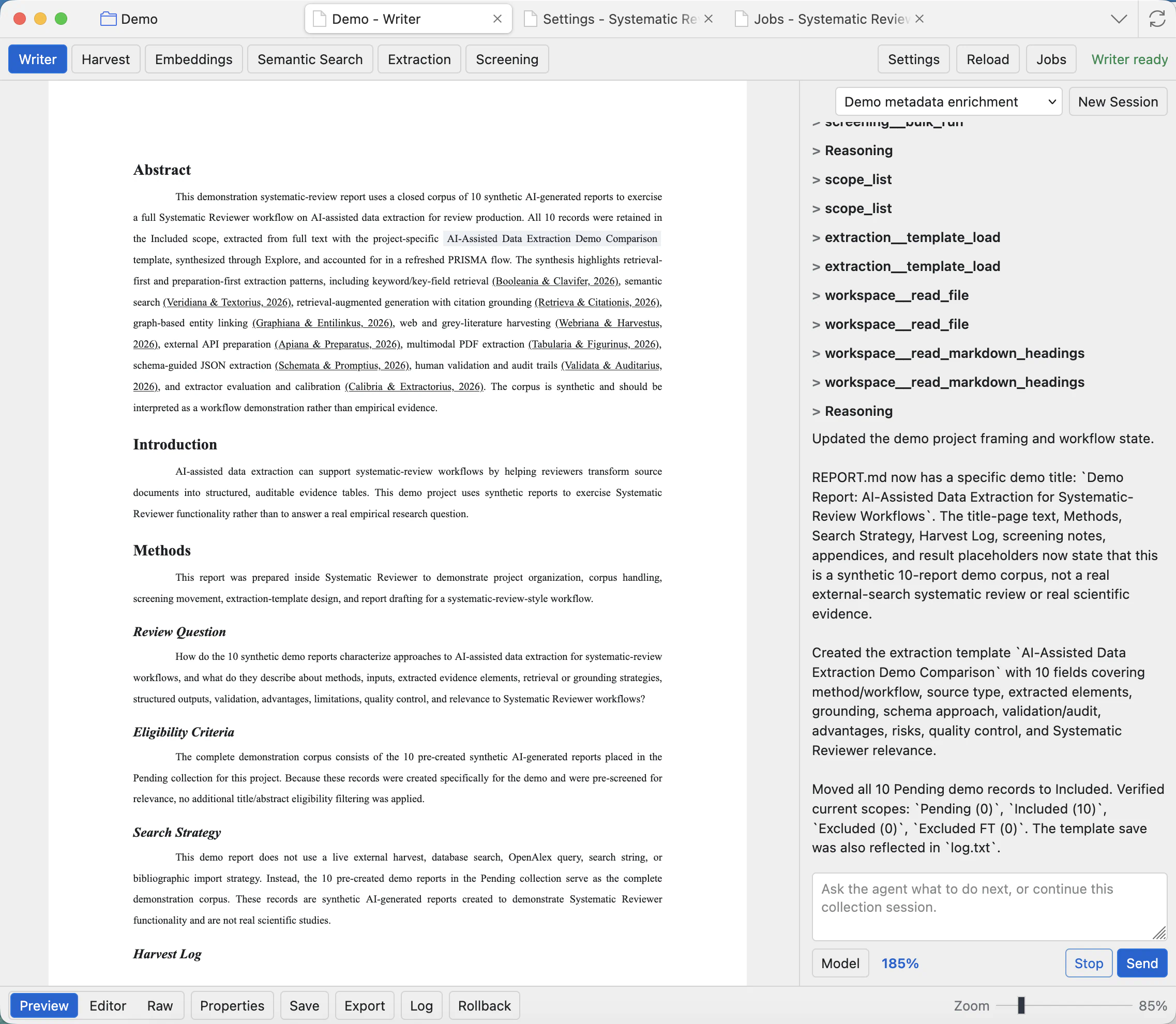
Use the Writer toolbar
The lower toolbar controls the report document itself. Use these buttons when you are working with REPORT.md rather than screening rows or project settings.
Preview
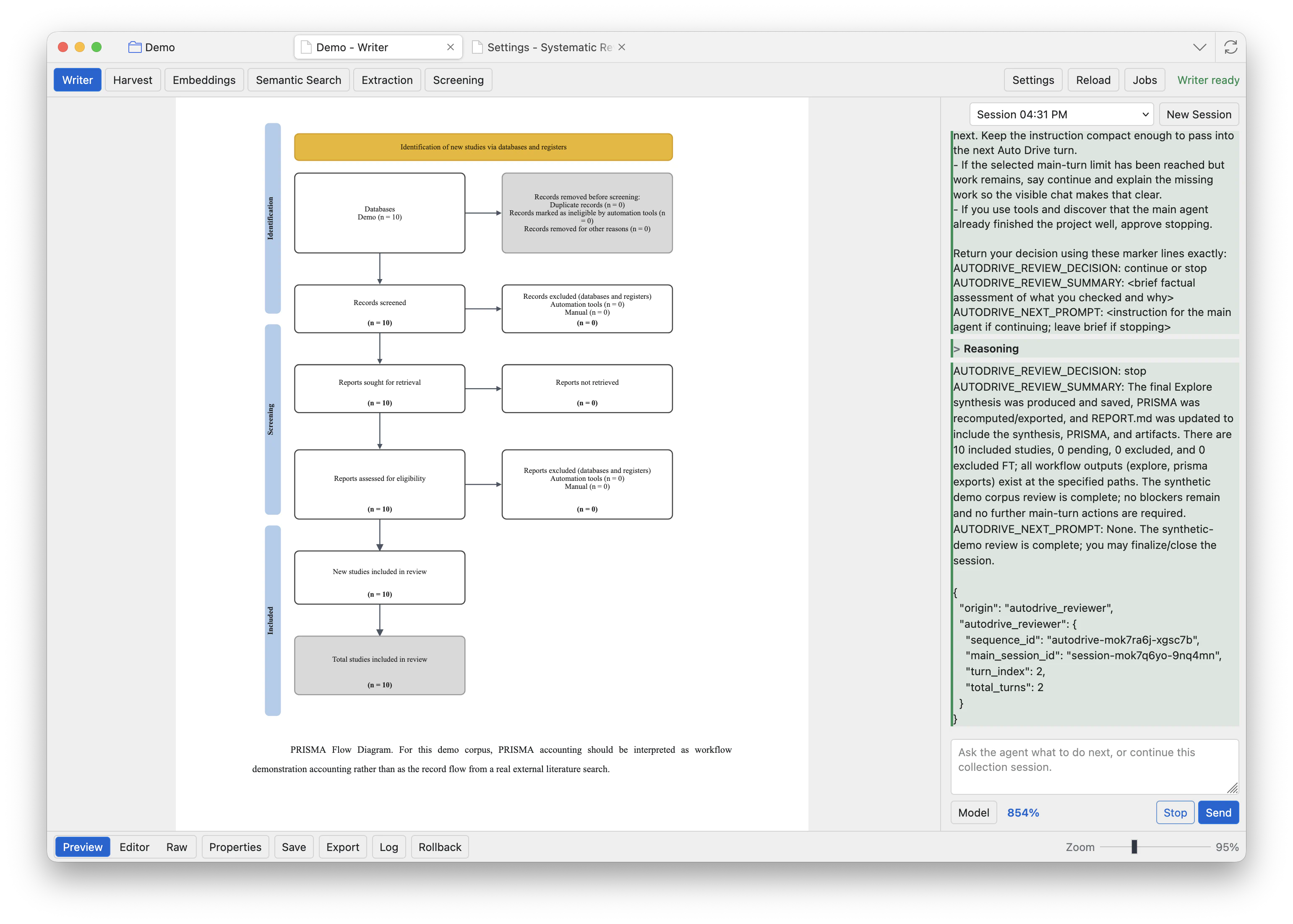
Shows the formatted report with page layout, citations, references, tables, page breaks, and PRISMA diagrams. Use this before export.
Editor
Edits the report in a page-like writing view. Use this for normal report writing, headings, citation tokens, tables, and layout markers.
Raw
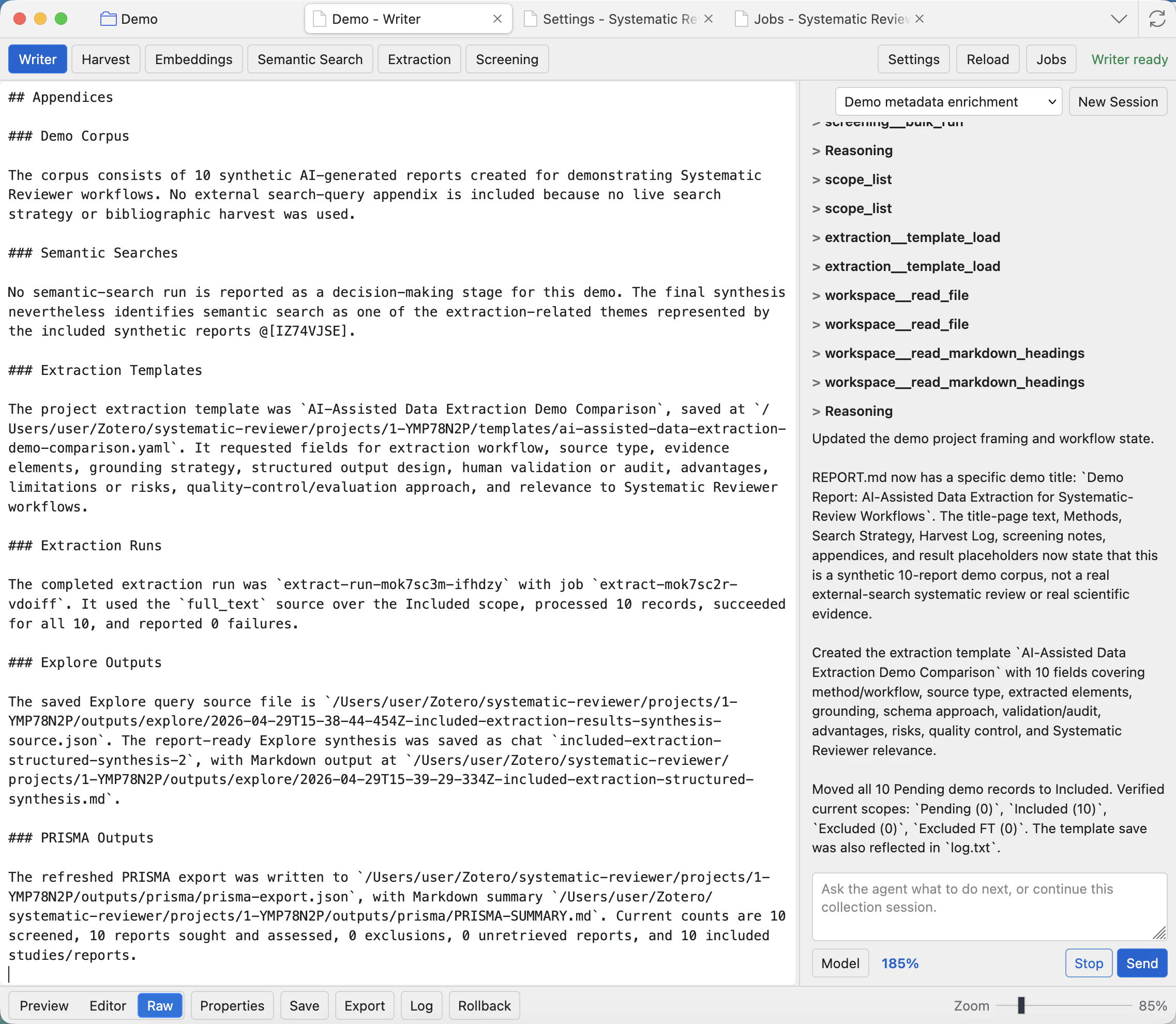
Shows the underlying Markdown. Use Raw when you need exact syntax control, such as checking table syntax, citation tokens, or page-layout comments.
Properties
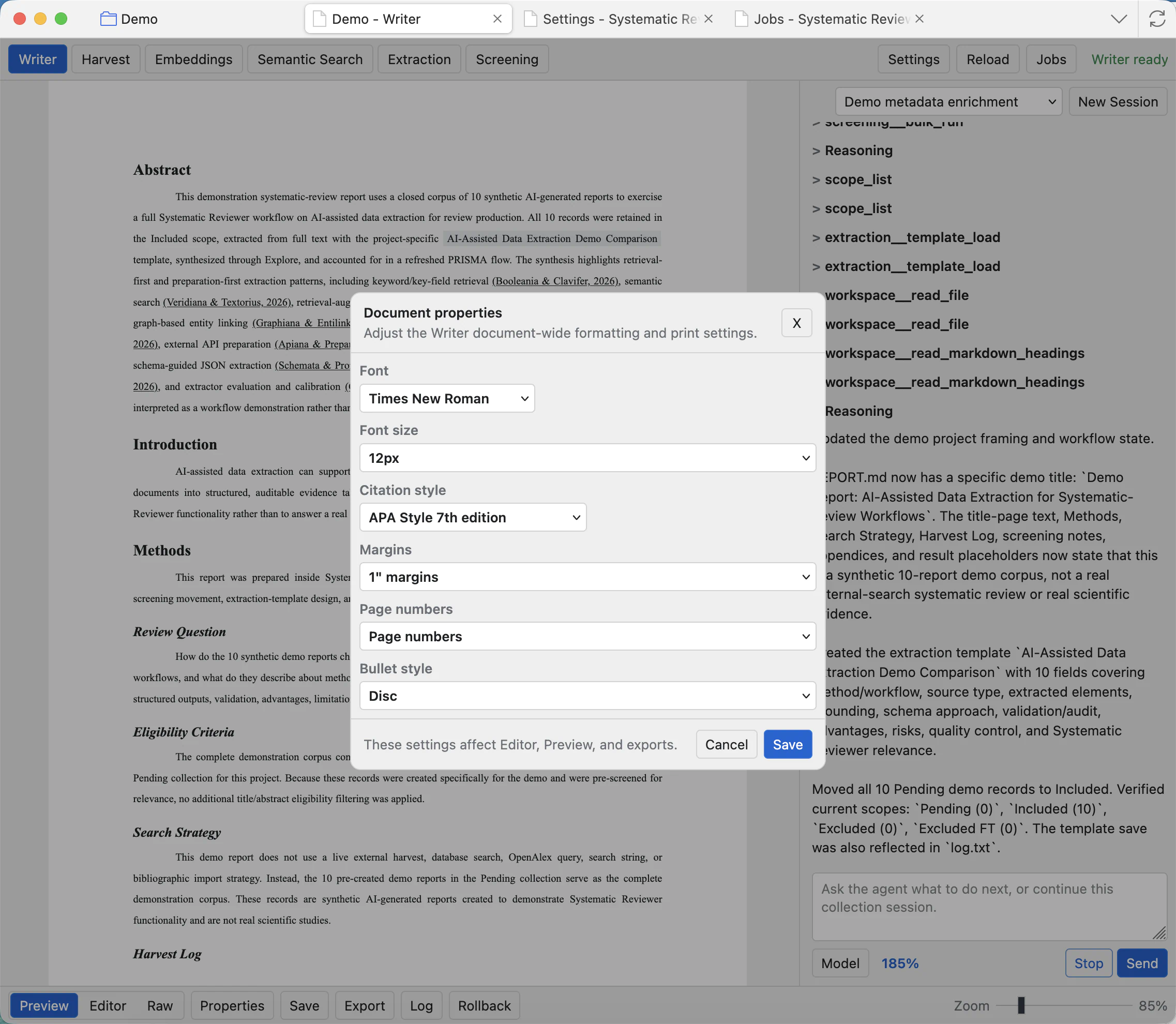
Opens document settings for font, page margins, page numbers, citation style, bibliography behaviour, and dark/light page display.
Save
Writes the current report changes to REPORT.md. Save before exporting or before running an agent request that should see your latest edits.
Export
Queues PDF, DOCX, or Markdown export. Export work is handled in Jobs so long exports do not block the Zotero window.
Log
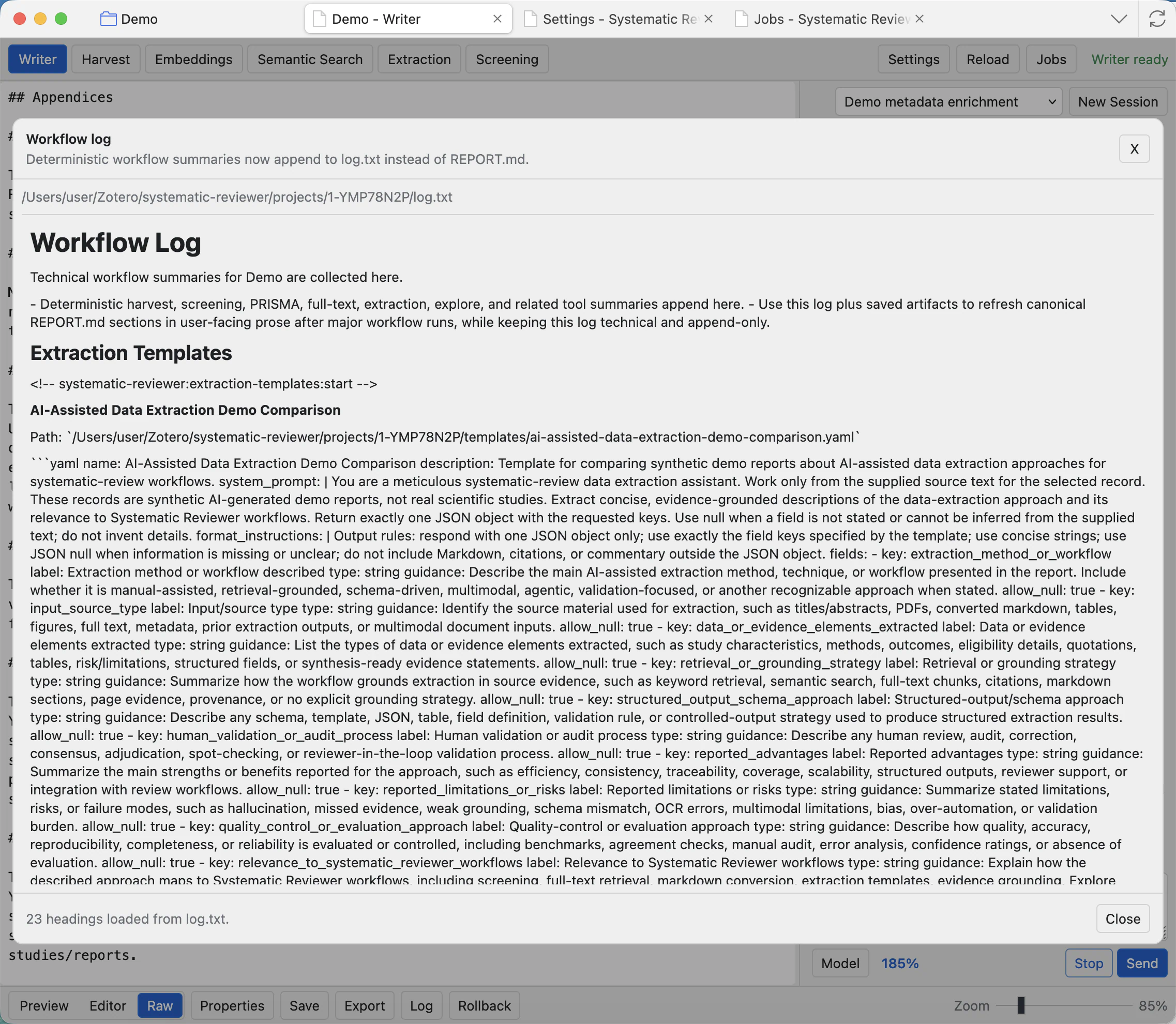
Opens the workflow log attached to the project. Use it to inspect background notes, agent actions, and job messages.
Rollback
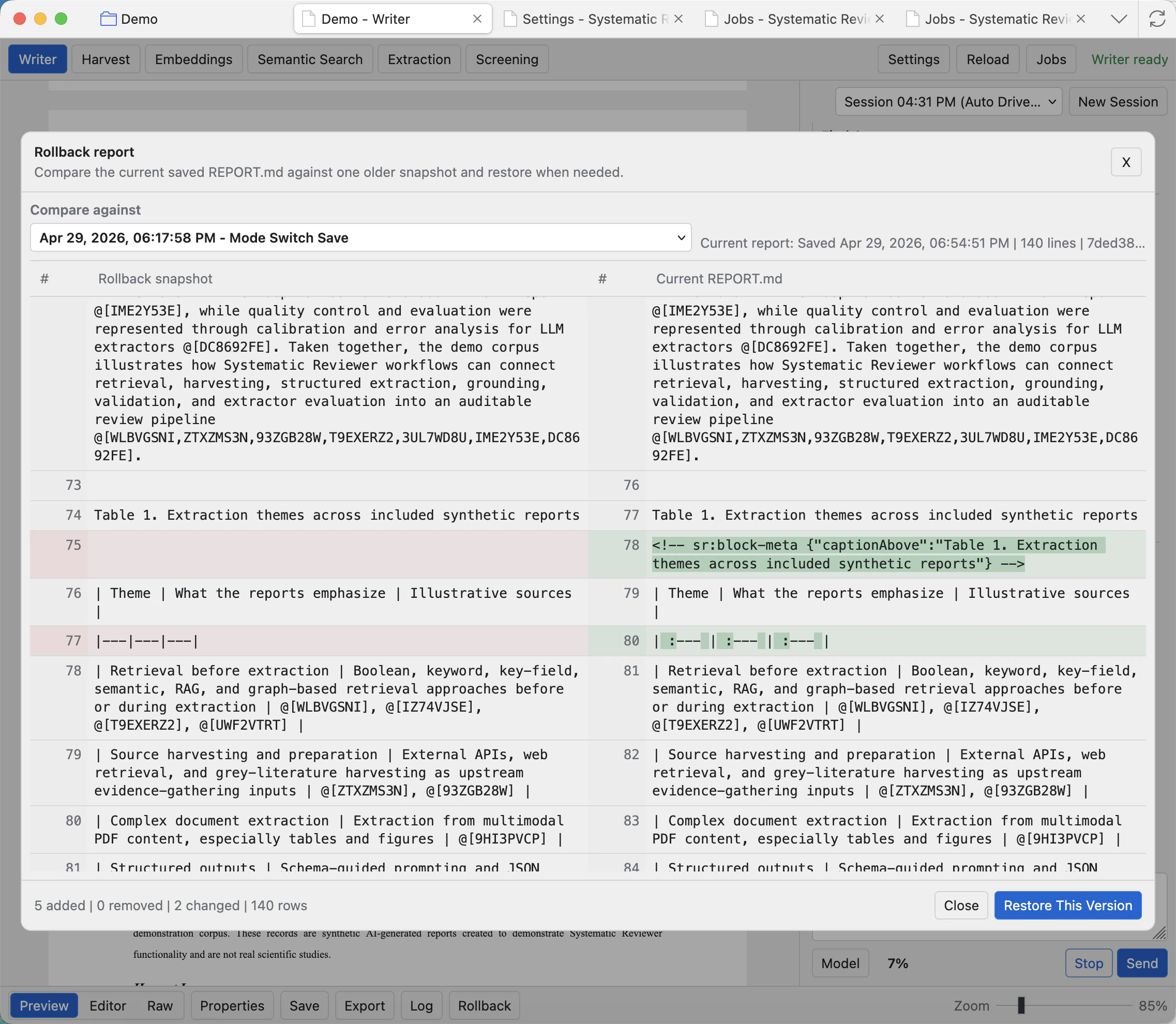
Opens saved report snapshots so you can compare and restore an earlier REPORT.md version when needed.
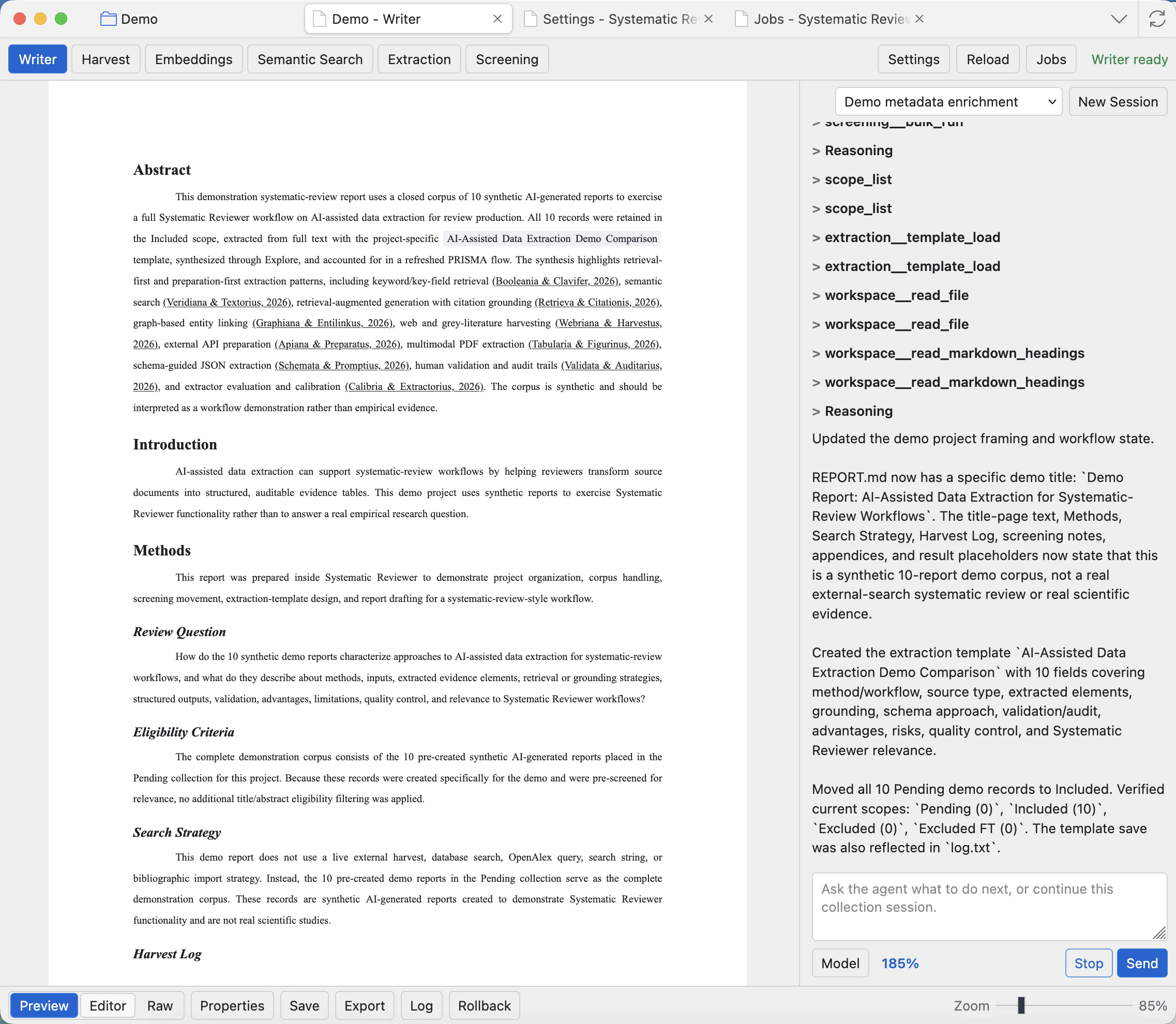
Preview, Editor, and Raw
Preview is for reading the final shape of the report. Editor is for ordinary writing. Raw is for exact Markdown. You can move between the three modes while keeping the same underlying REPORT.md content.
Document properties
Open Properties when you need to change report-wide formatting rather than individual text. This includes the citation style, bibliography options, page numbering, page size, margins, font choices, and the preview/editor page colour used on screen.
Citations, headings, and report elements
Citation-aware editing uses Zotero item keys inside Markdown citation tokens. The Writer context menu can help work with headings and report elements such as PRISMA blocks, generated tables, and inserted database tables.
Use headings consistently. The report title page can use a top-level title, while report sections should use normal section headings so the table of contents stays focused on the body of the report.
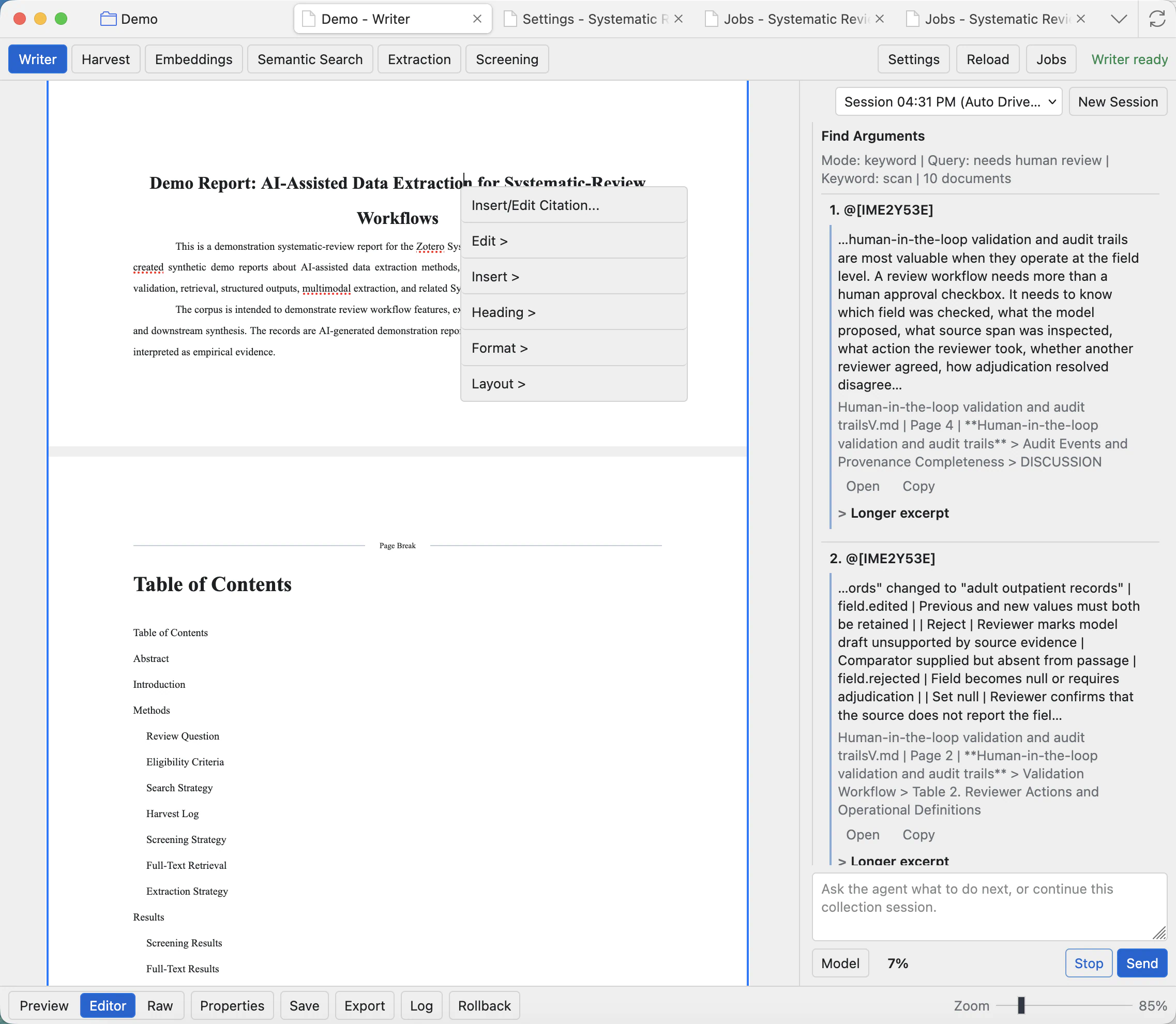
Insert/Edit Citation
Opens the citation picker for the selected location. Use it to add a Zotero-backed citation token or adjust an existing citation.
Edit
Shows editing actions for the selected report object, such as editing a selected citation or supported structured block.
Insert
Adds report elements at the cursor, including generated or structured content supported by the Writer.
Heading
Changes the selected paragraph into a heading level or returns it to normal paragraph text. Use headings for report structure.
Format
Applies text formatting to the current selection when supported by the editor.
Layout
Inserts report layout markers such as page breaks and landscape sections. Put a wide table title immediately above the table inside the same layout section.
Insert citations
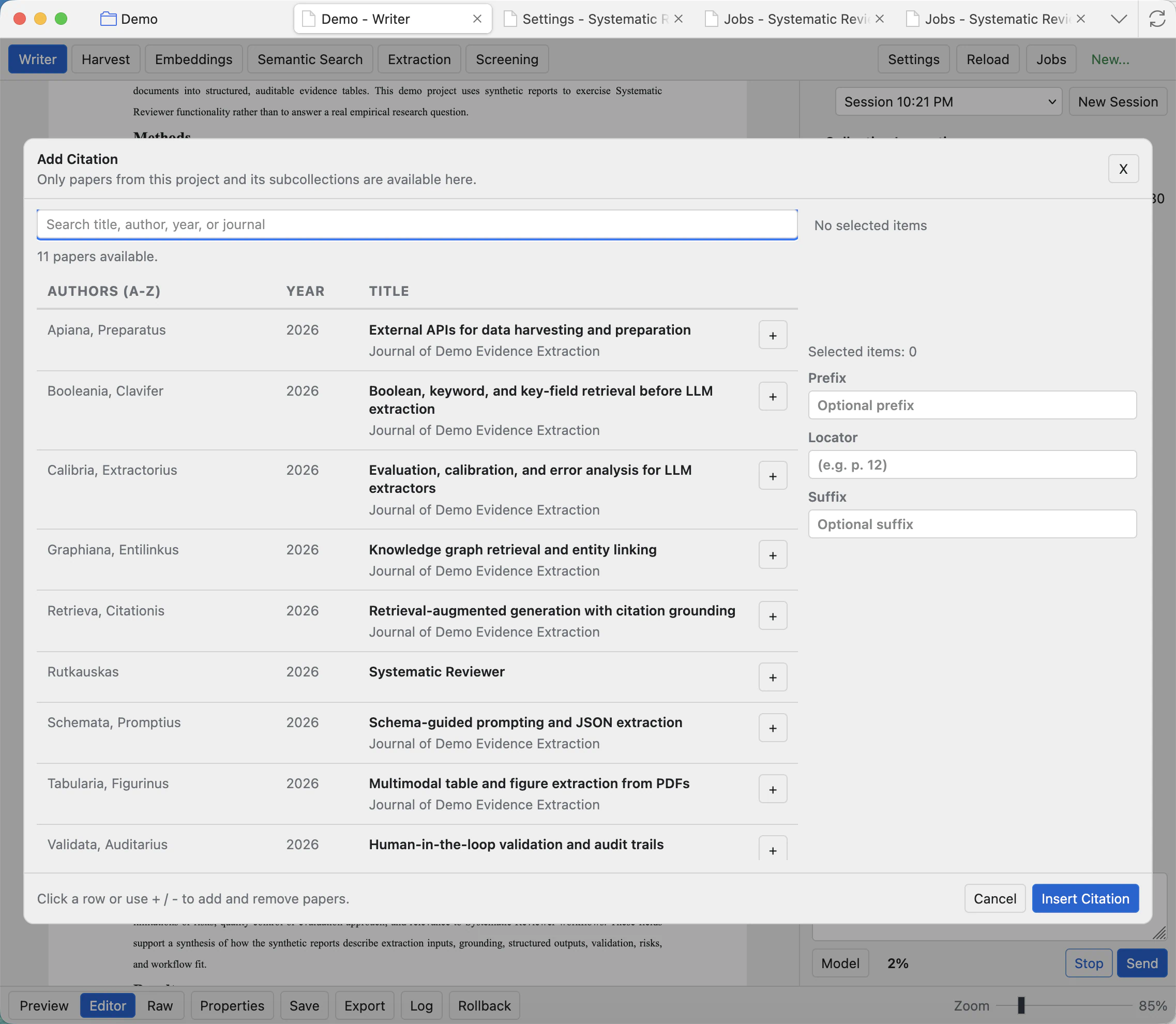
Use the citation picker when you want a report claim to cite project records. Search by author, year, title, or citation text, add the relevant records, then insert the citation. Use prefix, locator, and suffix only when the citation needs that detail.
Insert structured content
Writer supports plain Markdown content and project-generated content. Use the report tools and agent tools to insert PRISMA diagrams, database table snapshots, extraction summaries, images, and synthesis tables. Inserted database tables become report content, so you can read and edit them like the rest of REPORT.md.
Edit a PRISMA diagram
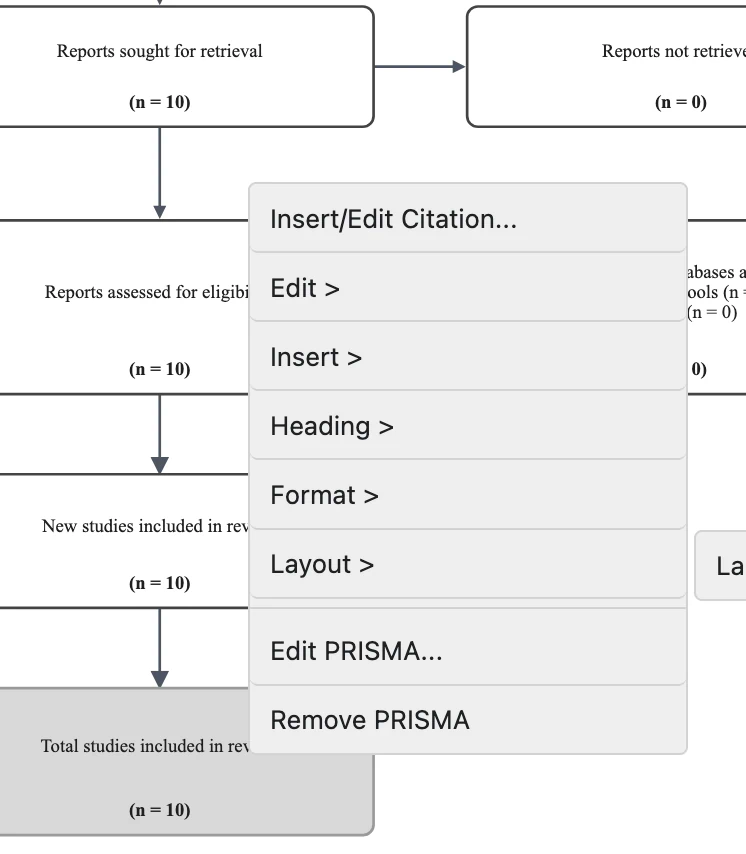
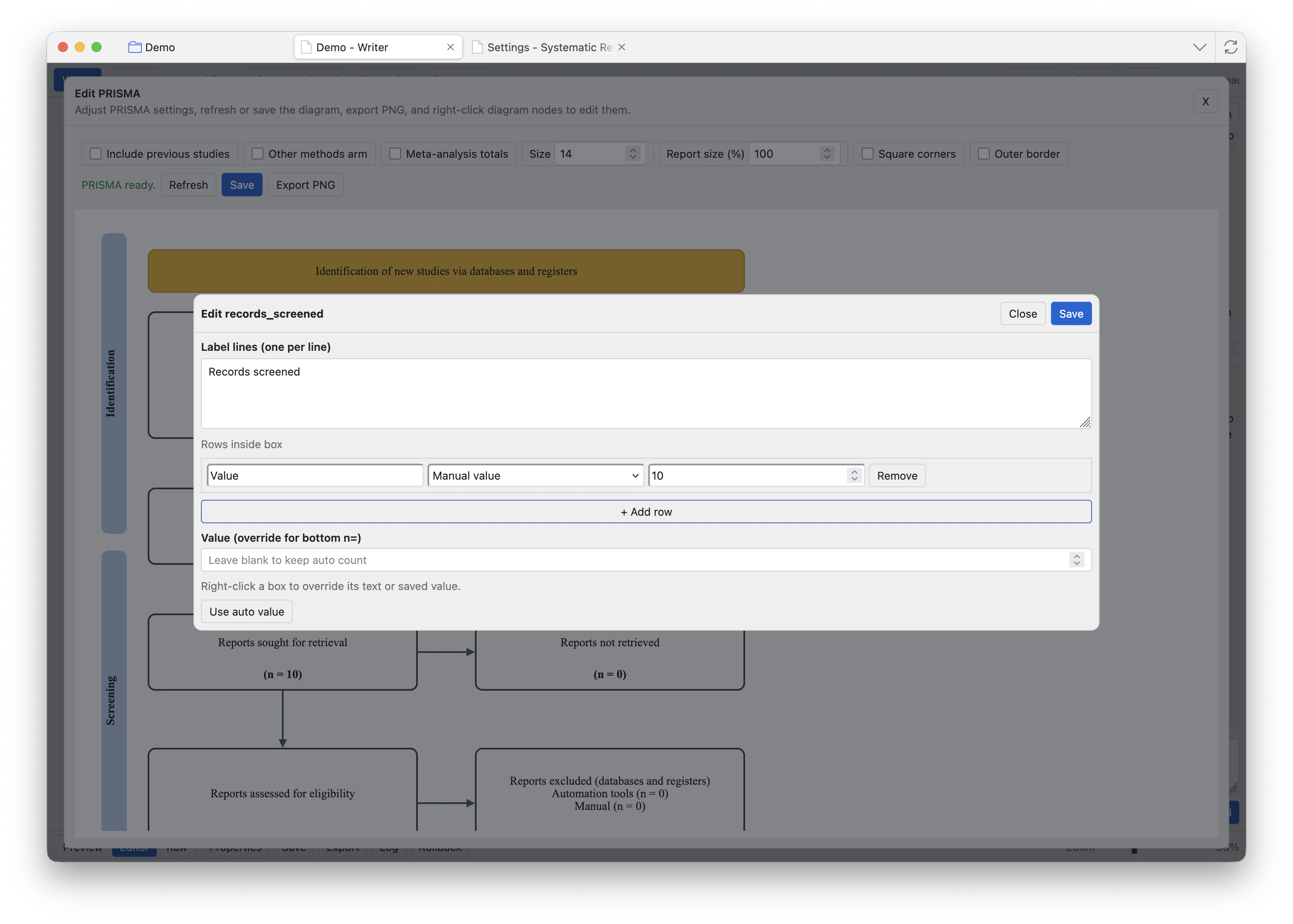
PRISMA blocks are report content. Insert or generate the PRISMA block, then secondary-click the diagram in Editor mode to open the PRISMA actions. Use the PRISMA editor when you need to adjust labels, hide or show parts of the diagram, or review the counts before export.
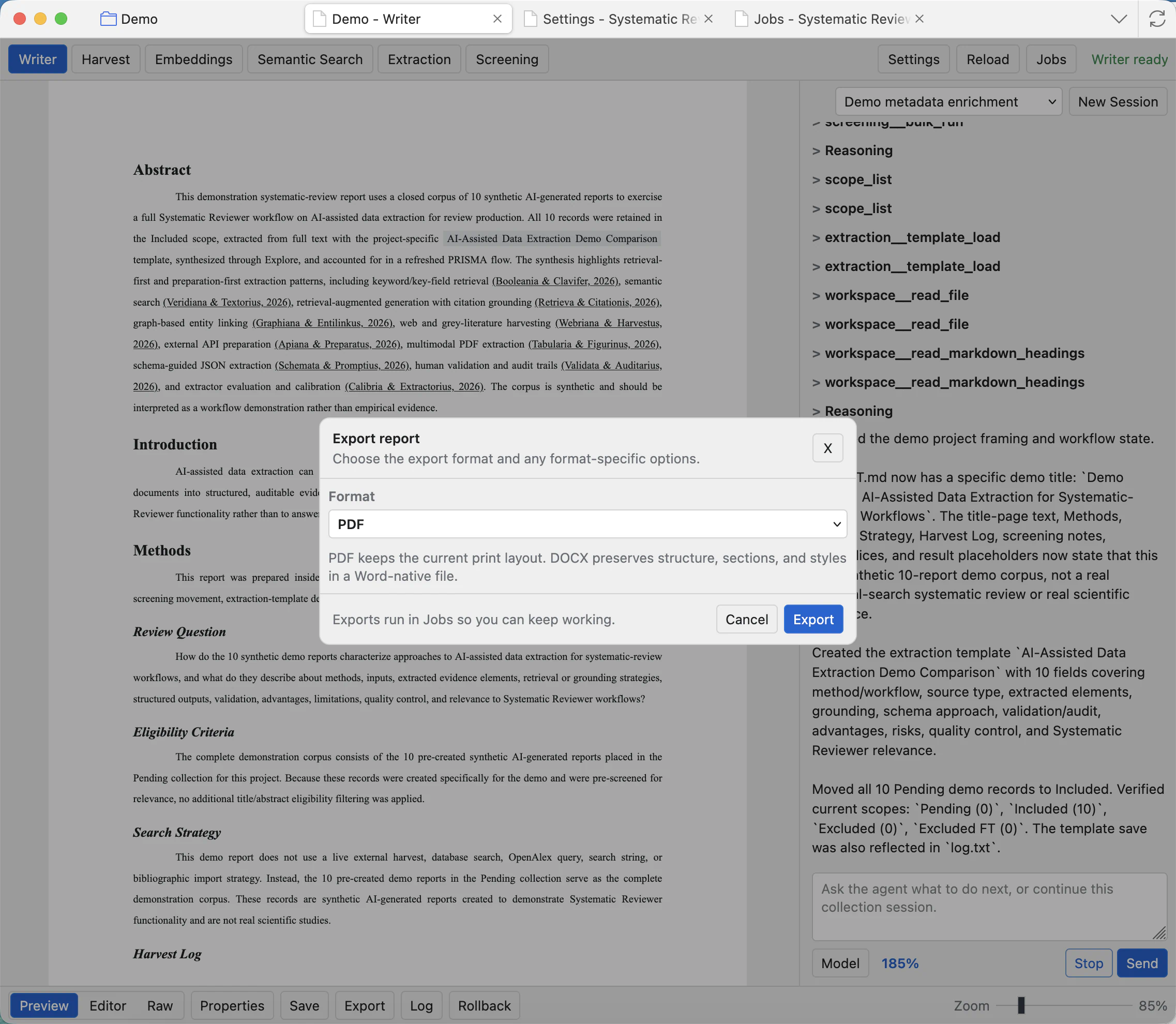
Export the report
Click Export, choose the format, then confirm. PDF is for final page-layout output. DOCX is for Word or LibreOffice workflows. Markdown export is useful for plain-text archiving or moving the report elsewhere.
DOCX citation mode
When exporting DOCX, choose whether citations should stay linked to Zotero or become plain document text. Linked citations are useful when you will keep editing the document on the Zotero setup that created the project, or on another machine that has access to the same Zotero library items. Unlinked citations are better for sending the file to someone else, submitting a final document, or archiving a stable copy.
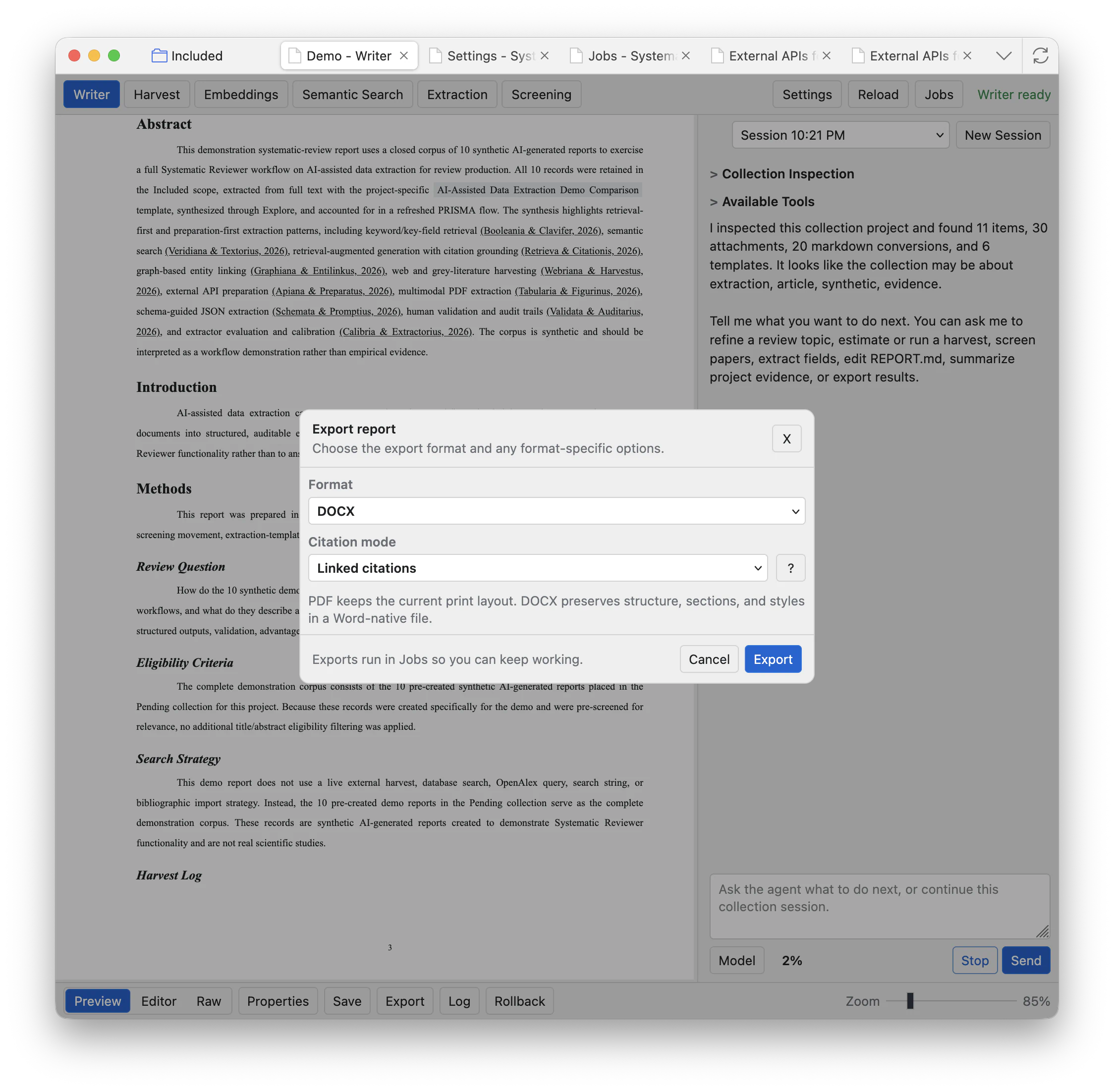
Linked citations
Exports active Zotero citation data using bookmark-style citation storage for compatibility between Zotero-supported word processors. Use this when the document will continue to be edited with Zotero available and the same library items are accessible.
Unlinked citations
Exports citations and bibliography as ordinary text. Use this for sharing with readers who do not have the same Zotero library, for submission copies, and for long-term archive copies.
Before sharing
If the recipient is not expected to refresh Zotero citations, export an unlinked DOCX or make a final unlinked copy from the word processor.
When editing inside a word processor
Systematic Reviewer uses bookmark-compatible linked citations for export because they can move between Zotero-supported word processors. After opening the DOCX and continuing work inside one word processor, use Zotero's document preferences to switch to the normal citation storage for that processor unless you specifically need cross-processor bookmark compatibility.
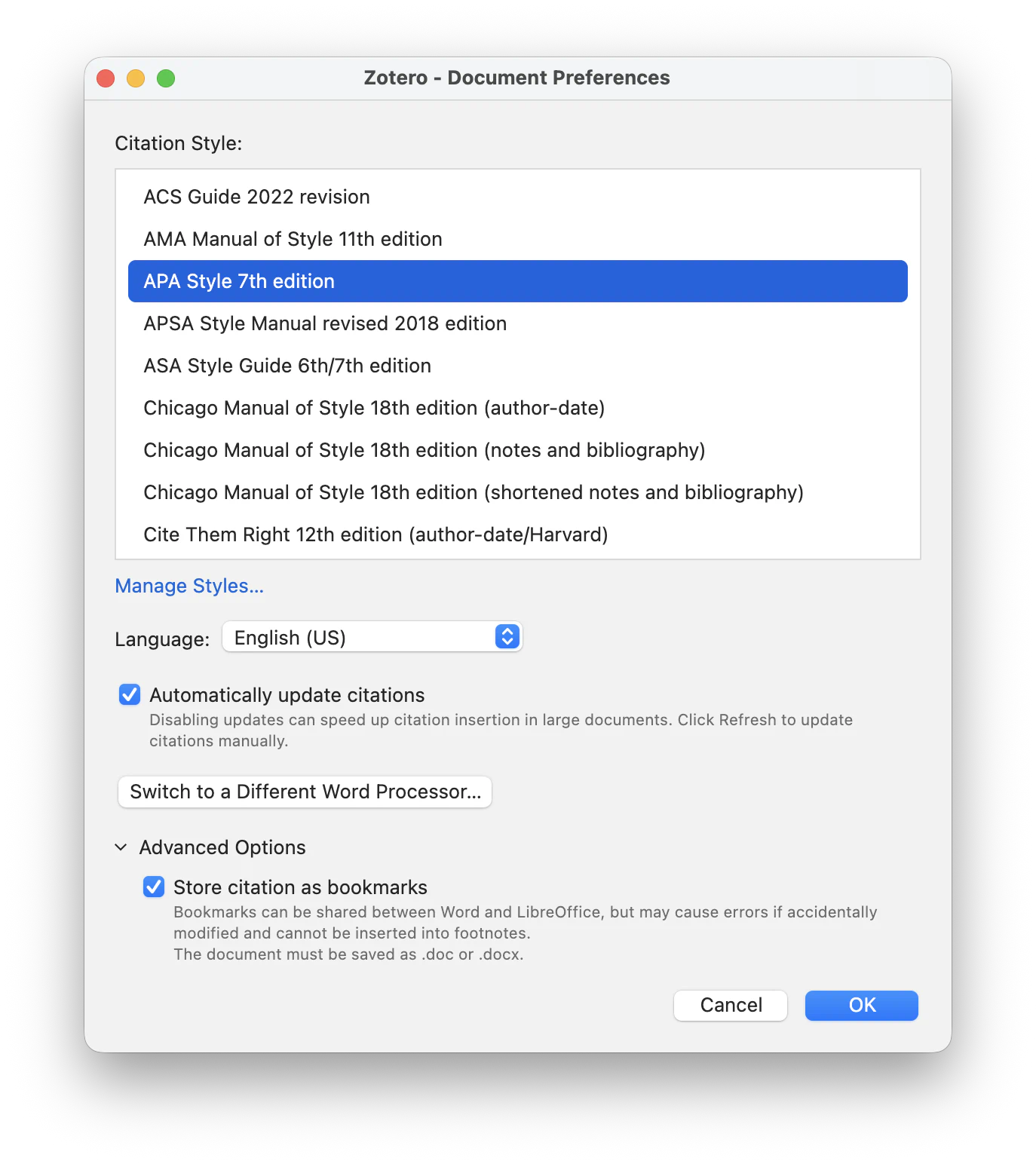
In practice: export linked DOCX when you need an editable Zotero-connected handoff, then untick Store citation as bookmarks inside Zotero's word processor document preferences when you settle into normal Word editing. Keep a separate unlinked copy for submission, review circulation, or archival storage. See Zotero's own word processor documentation for the field-versus-bookmark recommendation.
Log and rollback
Log opens the workflow log for the project. Rollback is for restoring an earlier report snapshot after checking the difference. Use rollback carefully: it is meant for recovering the report, not for editing a small phrase.
Choose snapshot
Select the saved report version you want to inspect. Snapshots are meant for recovery after agent or manual edits.
Read the diff
Scroll the comparison and check the changed lines. Do not restore only because the timestamp looks right.
Restore This Version
Replaces the current REPORT.md with the selected snapshot. Use it only after checking that the diff matches what you want.
Common checks
- Before export, switch to Preview and scan the pages, references, tables, and PRISMA blocks.
- Before asking the agent to edit the report, save your current manual changes.
- For wide tables, place the table title directly above the table and use the report's existing page-break and landscape markers.
- If an export is slow or fails, open Jobs and inspect the export job log.