Screening
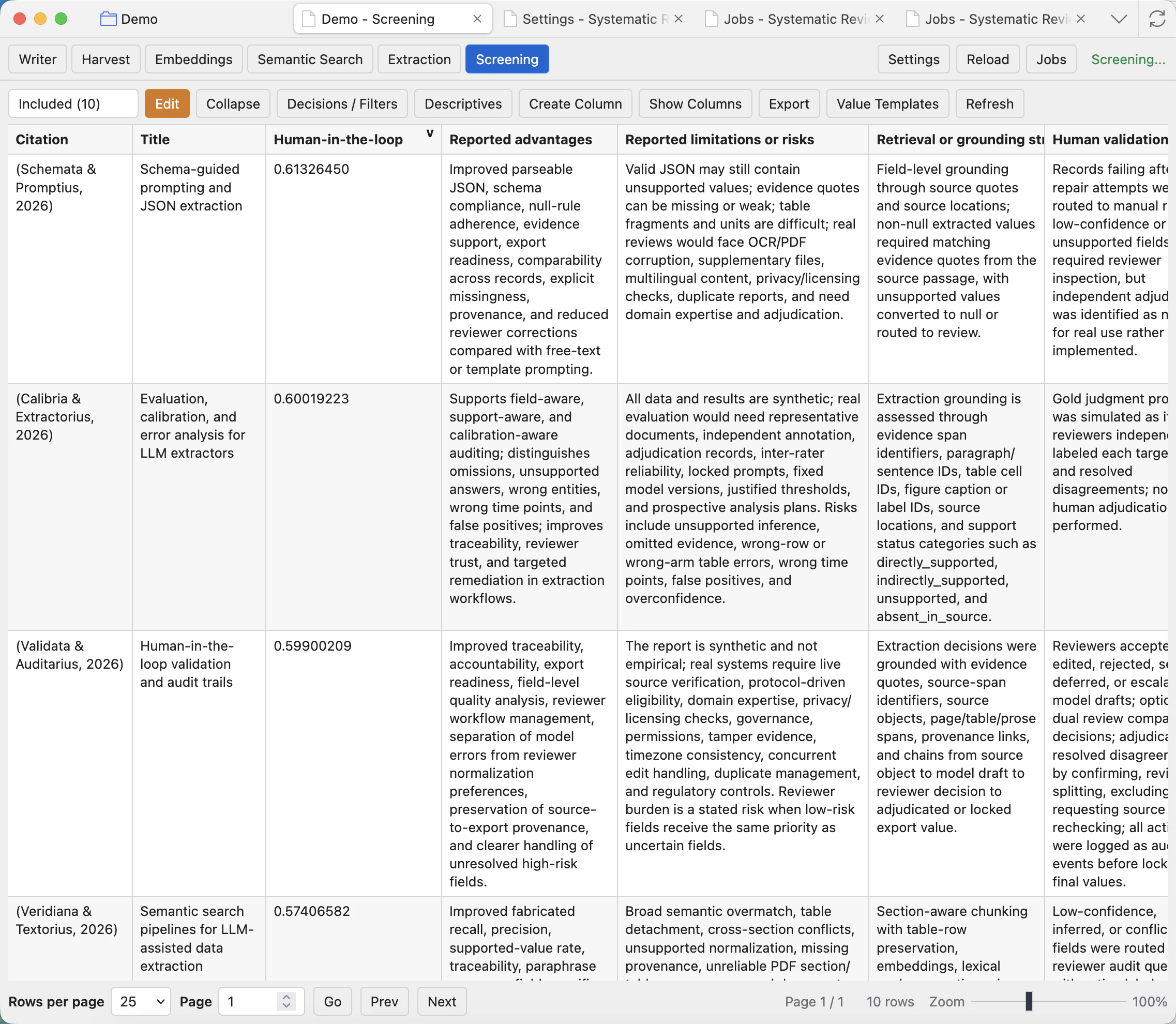
Screening is the spreadsheet-like project table for citations, titles, abstracts, decisions, manual columns, extraction columns, generated scores, and review notes.
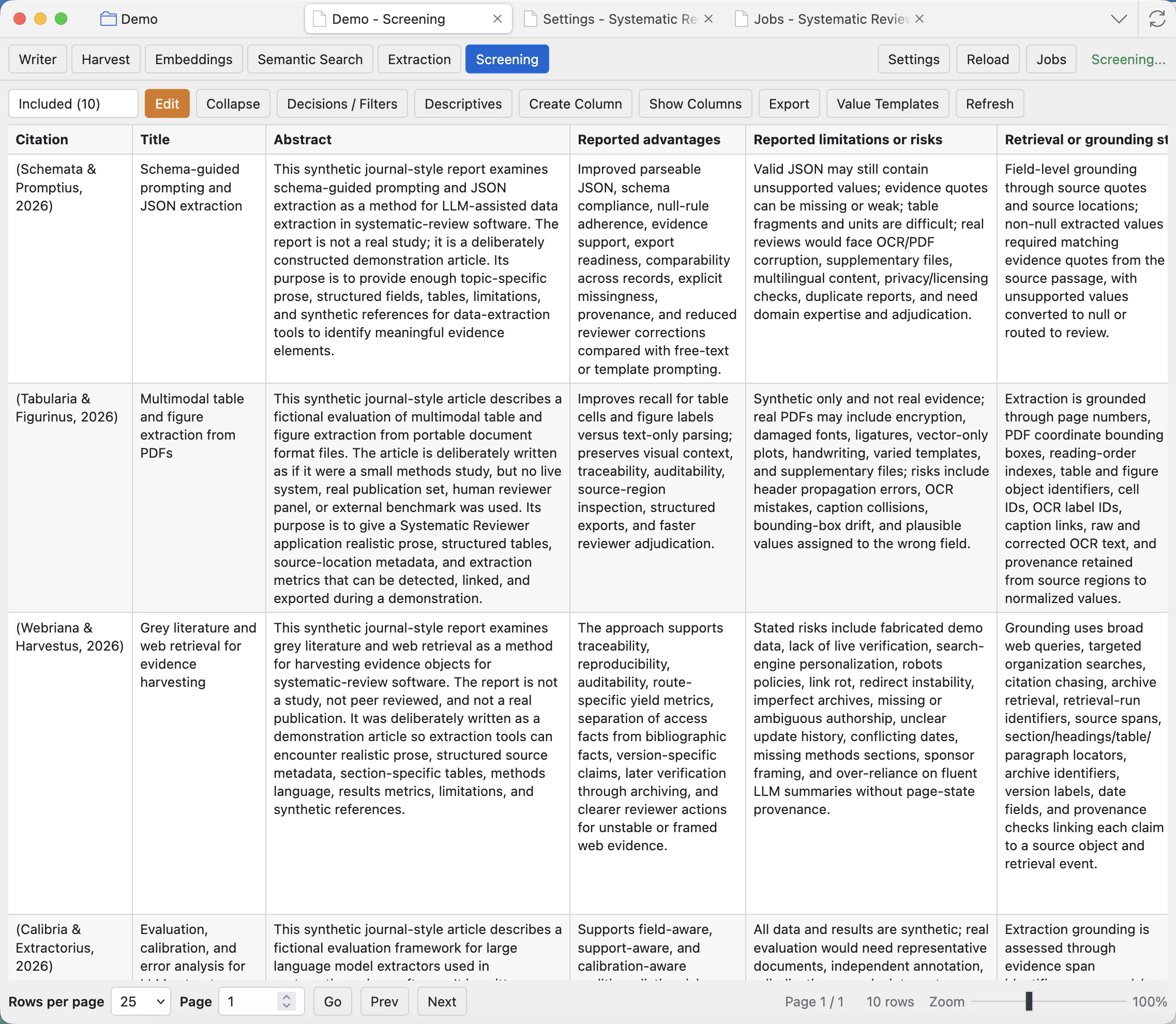
Grid controls
Scope dropdown
Choose the current set of records, such as Pending, Included, Excluded, or another project scope.
Edit
Turns editable cells on. In editing mode, click inside an editable cell to change manual notes, comments, decisions, or project columns.
Collapse
Reduces tall row content so you can scan more records at once. Expand again when you need more detail.
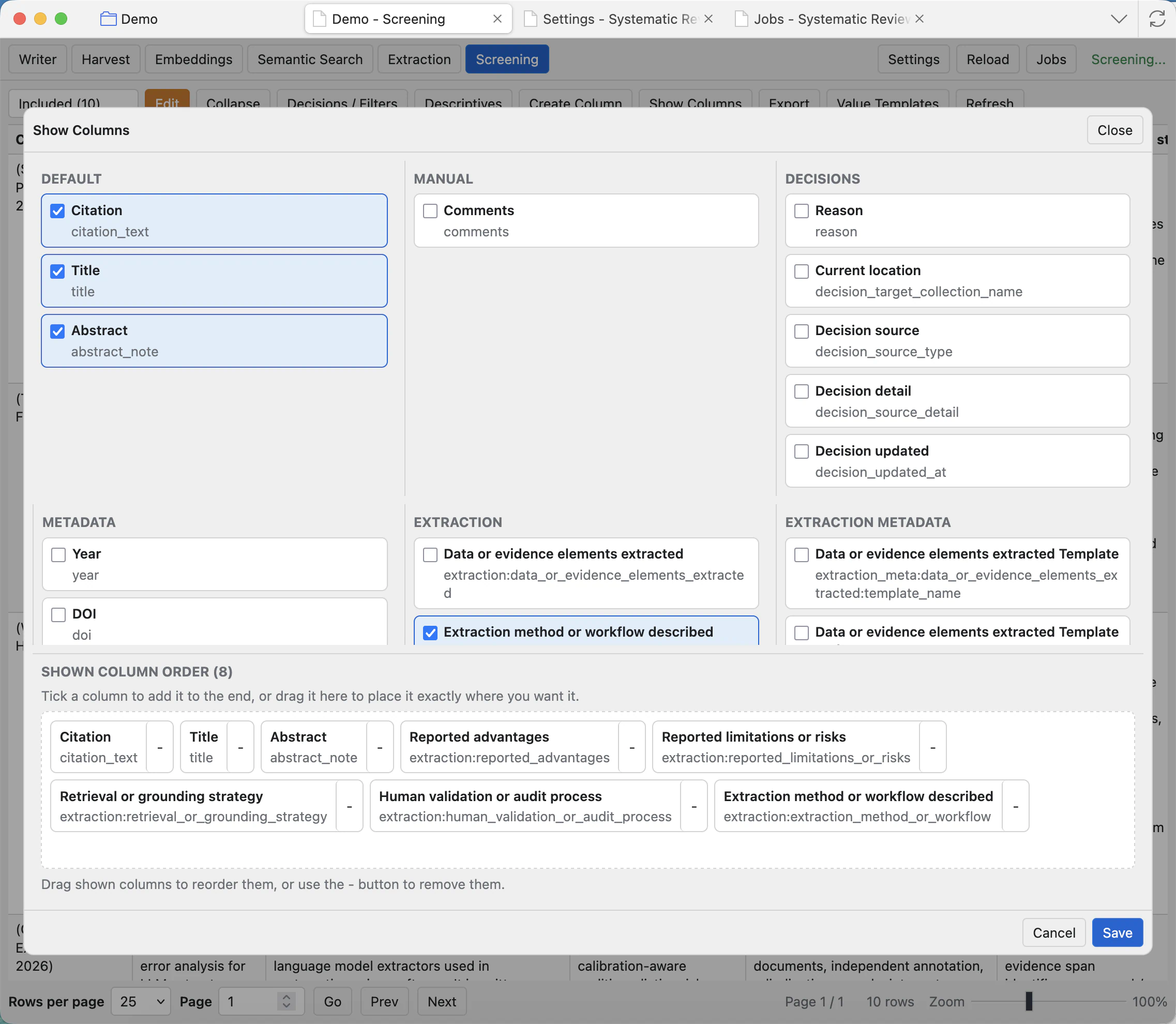
Show Columns
Choose visible columns and reorder them. This is the main way to shape the grid for a task.
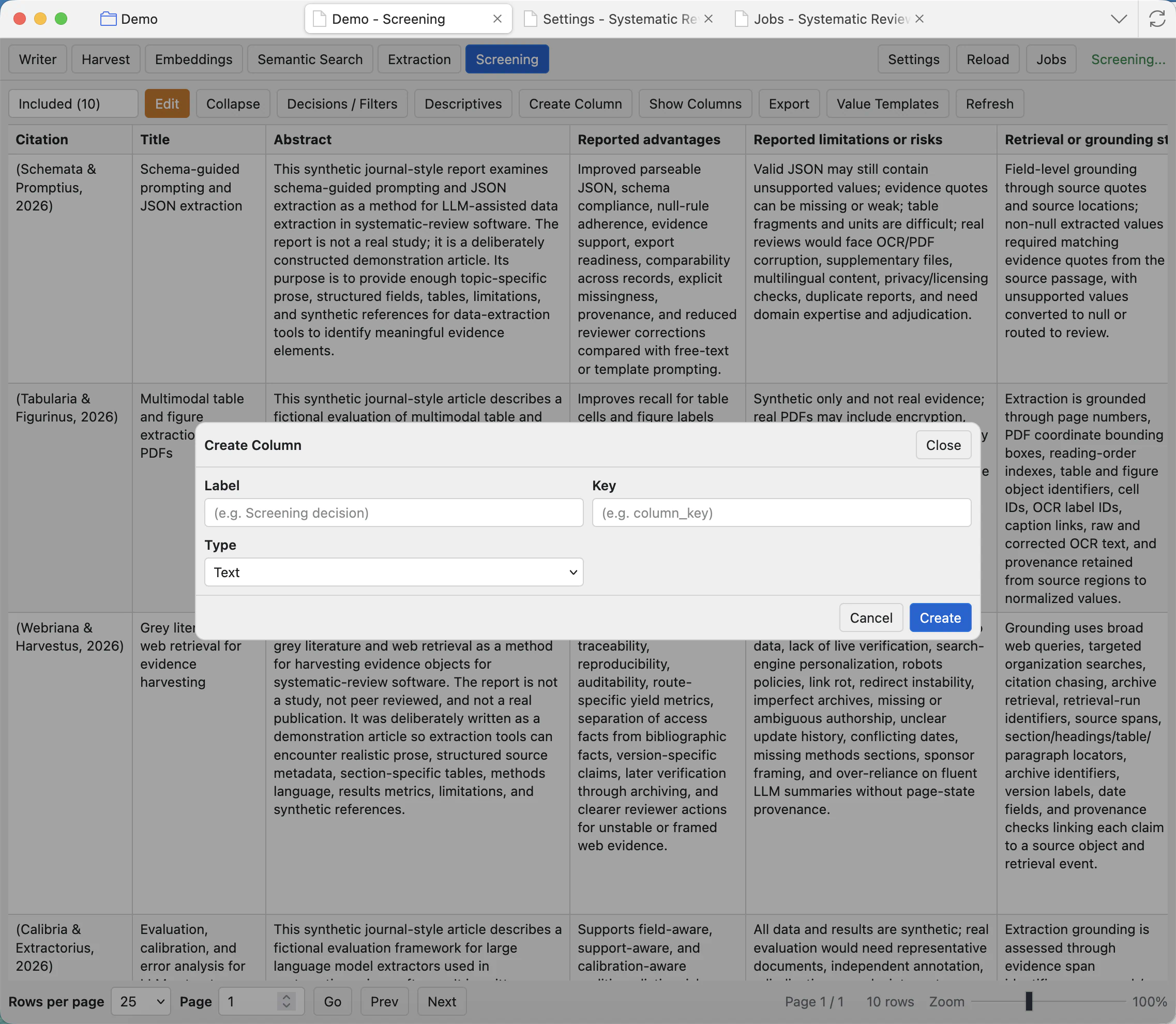
Create Column
Adds a project-specific manual column, such as notes, tags, reviewer judgement, or a custom extraction target.
Value Templates
Manages reusable values for columns where reviewers repeatedly choose from the same options.
Decisions / Filters
Opens bulk movement and filtering tools for scoped review decisions.
Descriptives
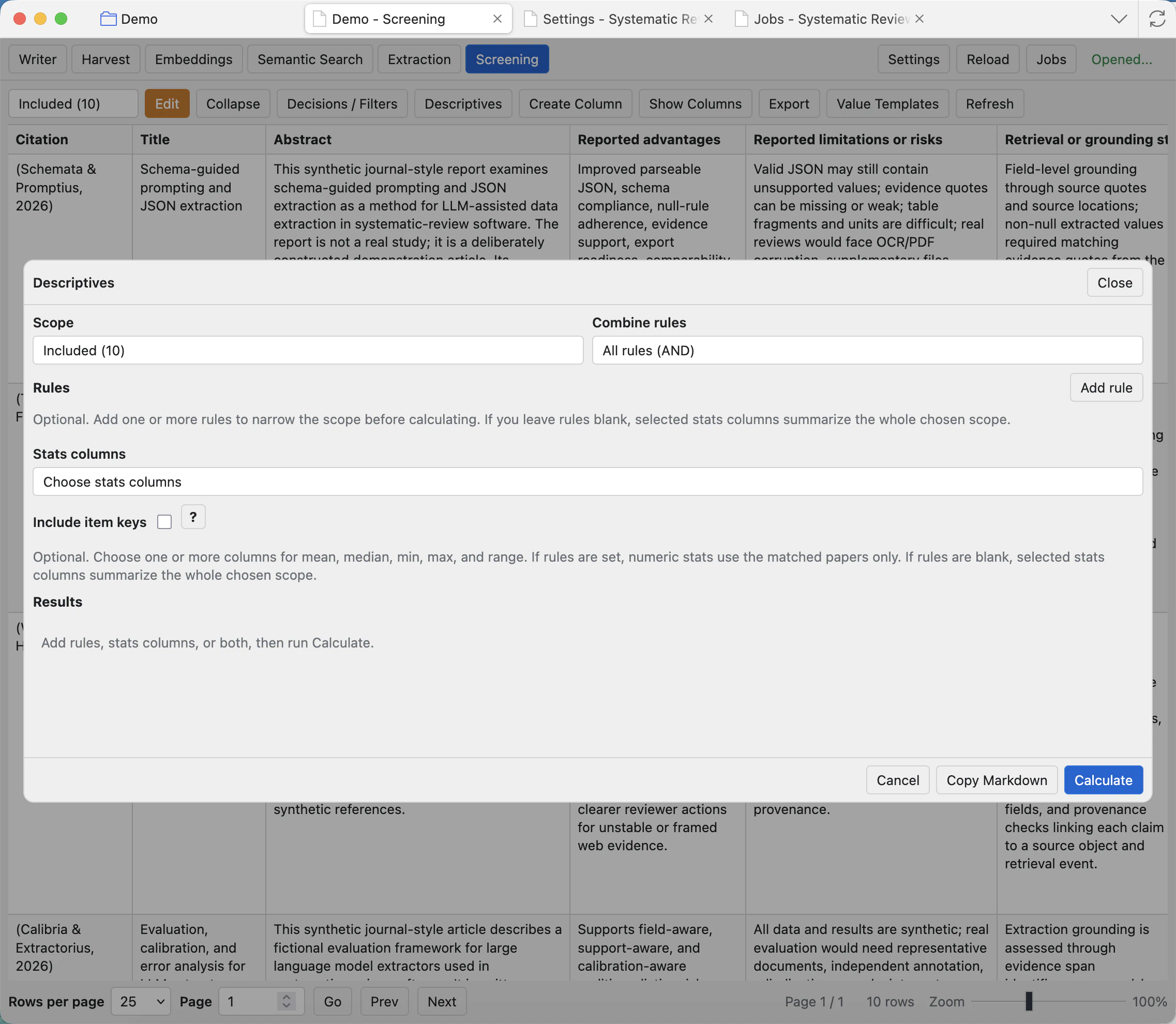
Summarizes selected columns and scopes. Include item keys only when they are useful and the output will stay readable.
Full Text
Queues full-text related work or exclusions for the current scope.
Export
Exports screening data to CSV for the current view or selected project columns.
Refresh
Reloads the grid after jobs, imports, extraction, or other workflows change the project data.
Rows, Page, Zoom
Use pagination and zoom to work comfortably with very large projects. These controls do not change the underlying records.
Actions column
The Actions column puts common record actions beside the row you are reviewing. Use it when you want to move a single record, open its Zotero item, or open the available full-text/Markdown attachment without leaving the grid.
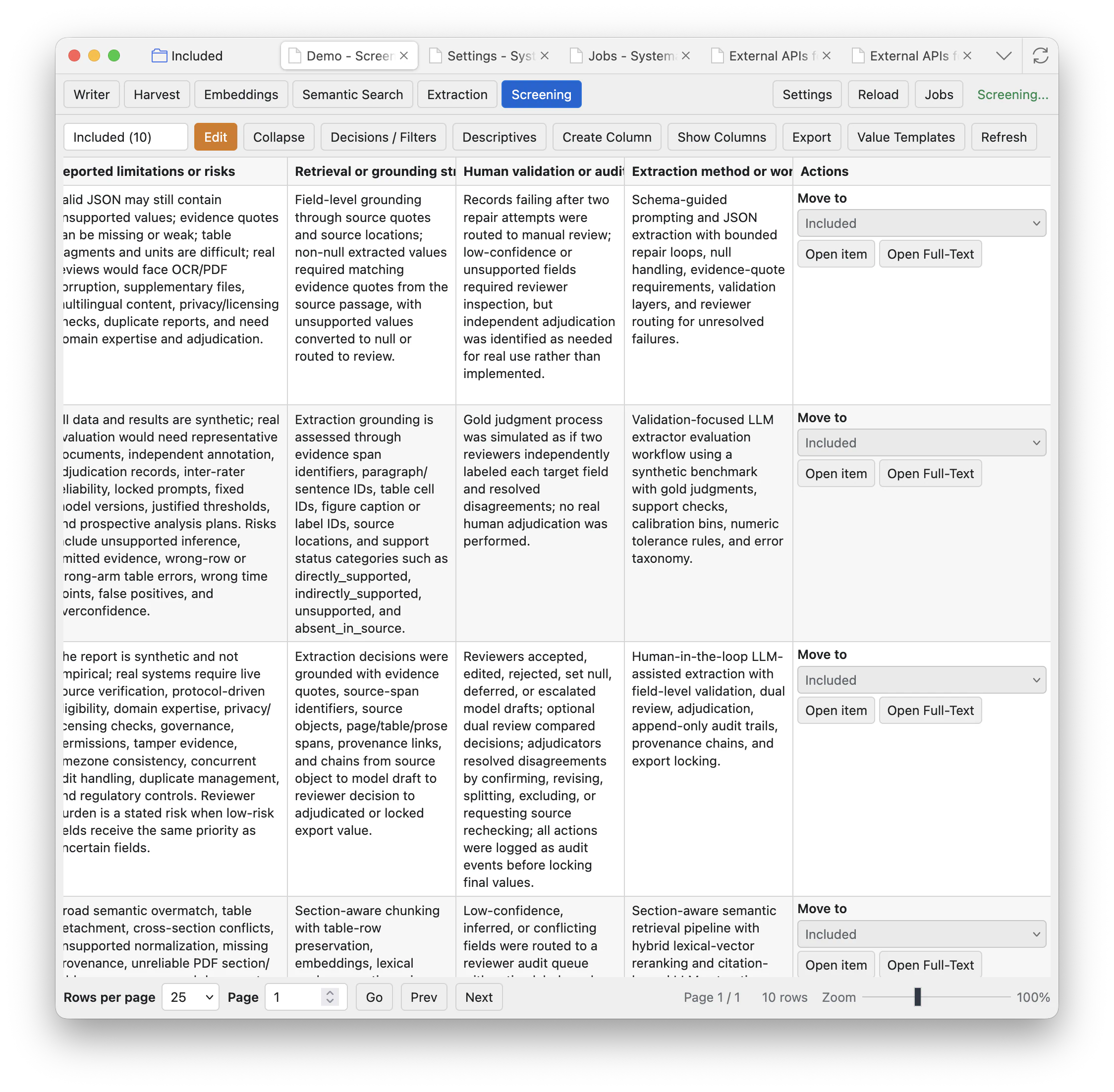
Move to
Moves that row to another project scope, such as Pending, Included, Excluded, or Excluded FT. Use it for one-record decisions.
Open item
Opens the Zotero item behind the row so you can inspect its Zotero metadata, attachments, notes, and library context.
Open Full-Text
Opens the best available full-text or converted Markdown attachment for that row. Use it when screening needs more than title and abstract.
Sort, resize, and edit
Click a column header to sort by that column when sorting is available. Drag vertical grid dividers to resize columns. When editing is enabled, editable cells open from a click anywhere in the cell.
Alternating row colour helps scanning; the grid lines mark column boundaries and keep wide tables readable.
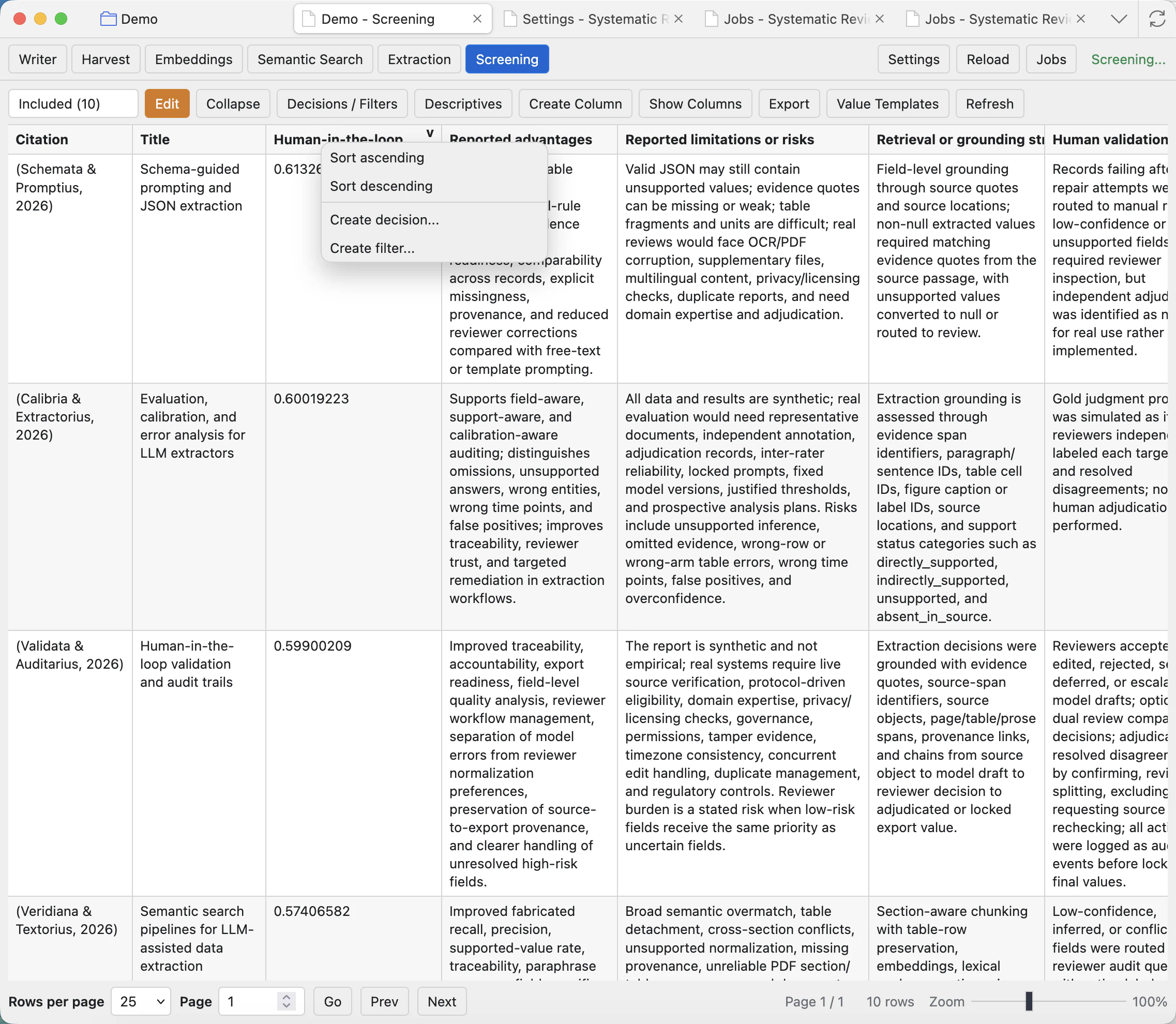
Sort ascending/descending
Sorts the current grid by the clicked column. For citation sorting, the app uses cached citation text where available.
Create decision
Starts a decision action using the selected column as the basis for a rule. Review the rule before moving records.
Create filter
Opens a filter rule for the selected column so you can narrow the current scope before acting.
Edit mode
When the orange Edit button is active, editable manual cells can be changed directly in the grid. Generated metadata and read-only extraction fields stay protected.
Semantic score columns
Semantic Search writes generated score columns into Screening. Scores help you prioritise records that are close to a query, but they do not replace screening criteria or reviewer judgement.
Show Columns
Open Show Columns to decide what the grid displays. Tick columns to show them, untick columns to hide them, and drag the shown-column chips to reorder the visible grid.
Create Column
Create Column adds project-managed fields. Use it for manual notes, reviewer labels, custom categories, or values that do not already exist in Zotero metadata or extraction output.
Decisions and filters
Use Decisions / Filters when you need a controlled batch action. Choose a source scope, action, combine rule, target subcollection, optional reason, optional notes, and filter rules. Review the rule before confirming movement.
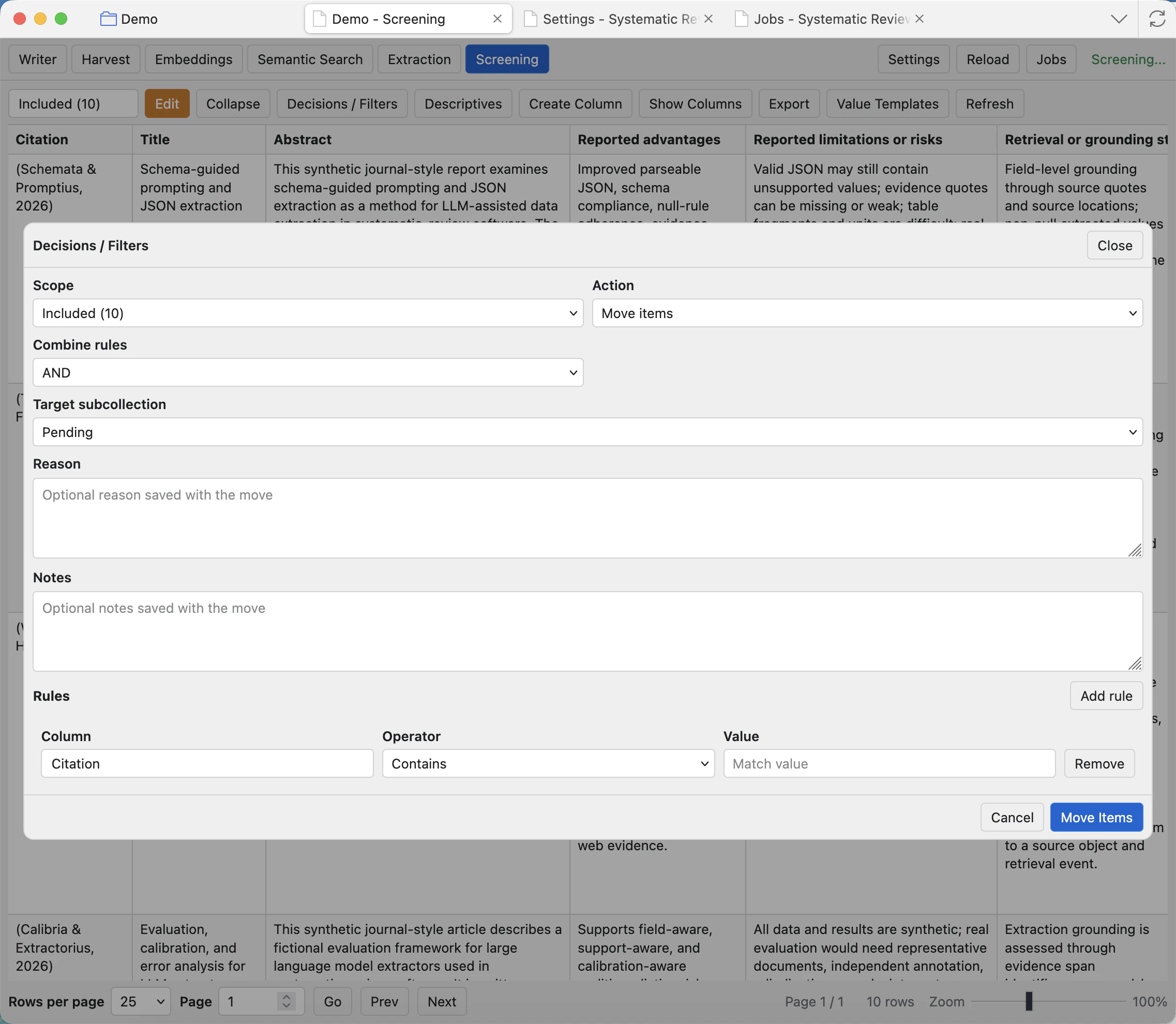
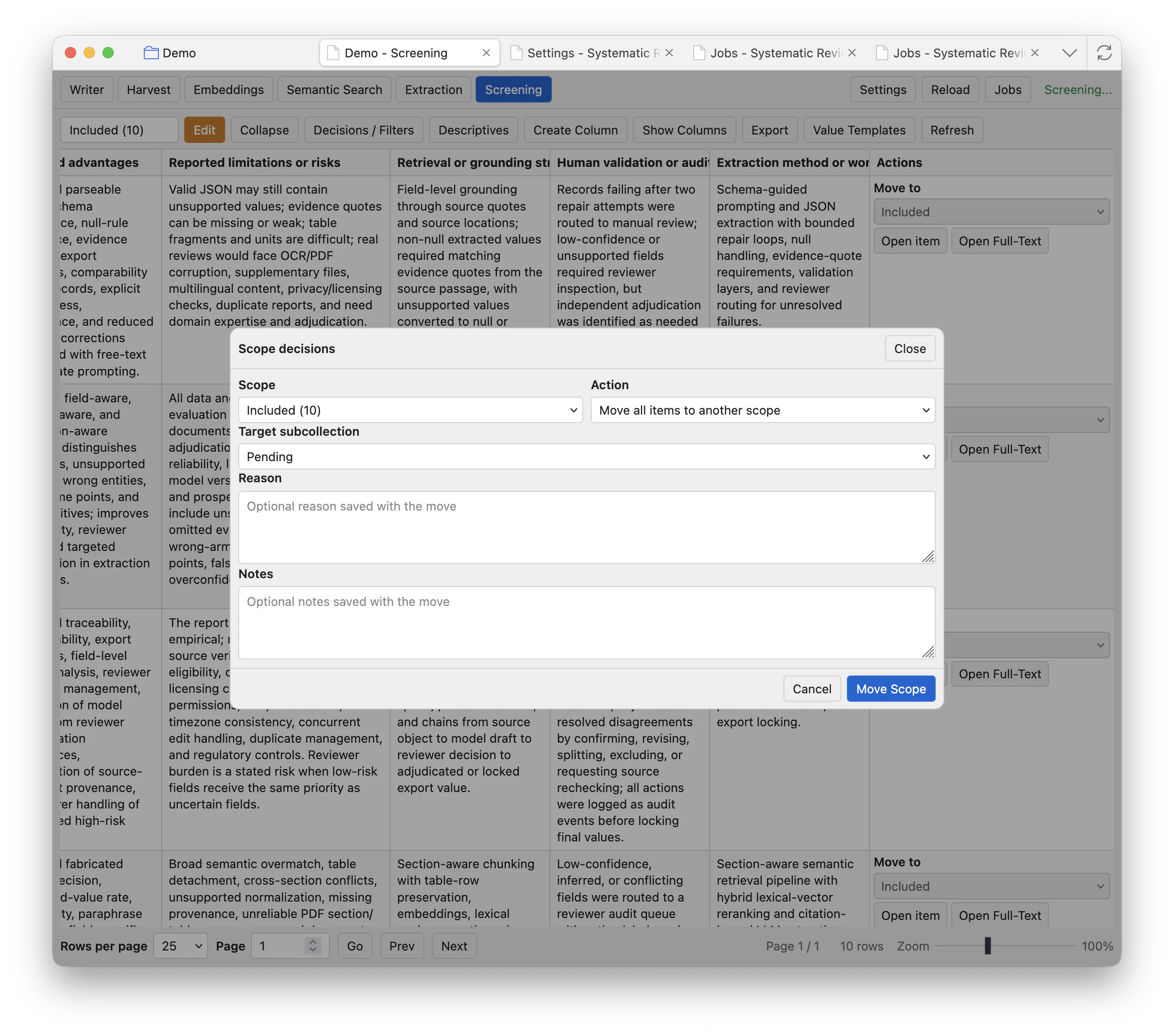
Scope
Choose the source set, such as Pending, Included, or Excluded. Batch actions only apply inside that source scope.
Action
Move matching items, create decisions, or apply the available batch operation. Read the action label before confirming.
Rules
Add one or more column rules. Use AND when every rule must match, and OR when any rule can match.
Reason and notes
Write a short reason for later auditability, especially when excluding or moving many records.
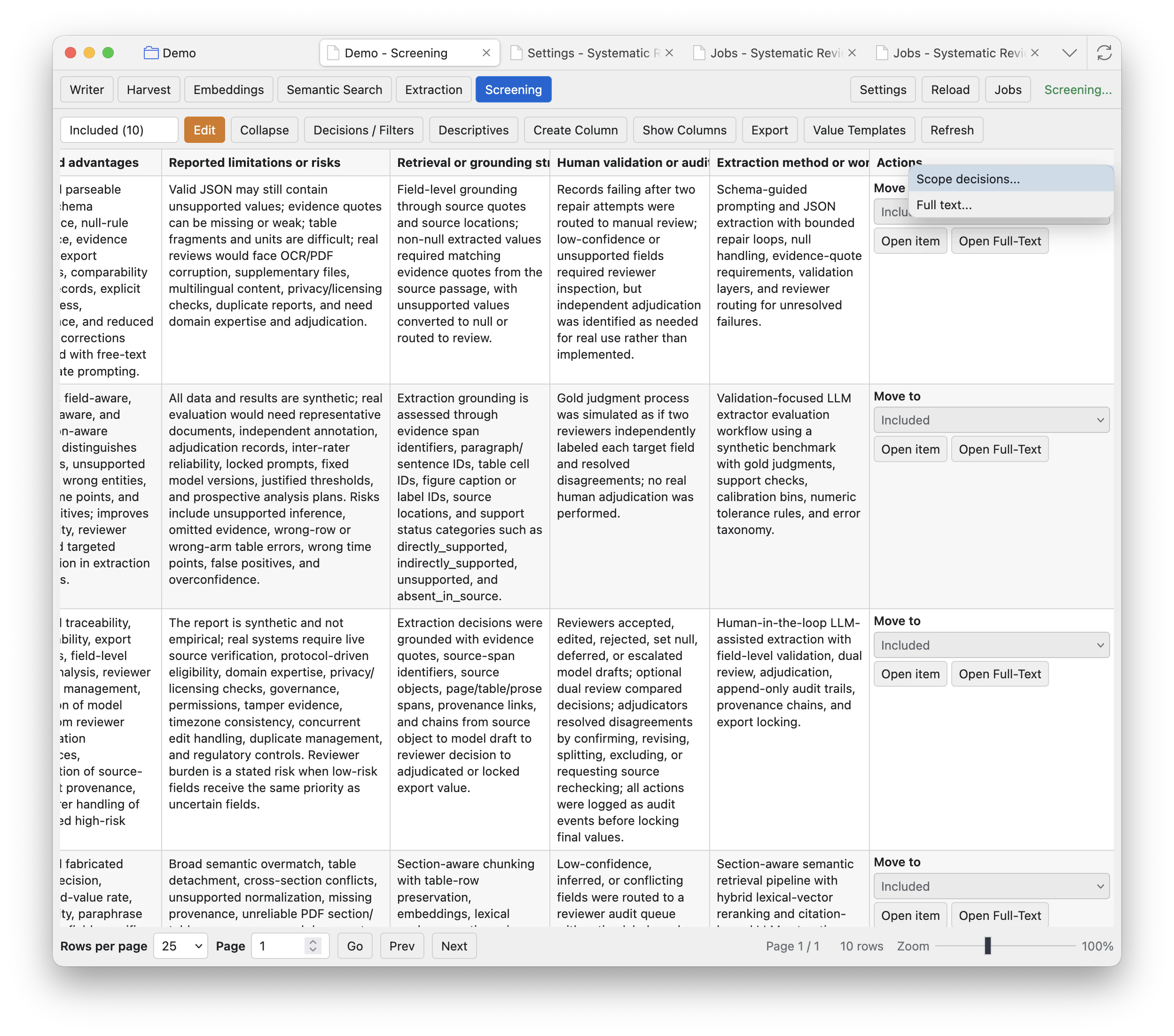
Actions header
Secondary-clicking the Actions area exposes scope-oriented shortcuts, including batch movement and full-text follow-ups for the current view. Treat them like the Decisions / Filters modal: check the scope and reason first.
Descriptives
Descriptives create summaries from the selected scope and columns. For a small set of papers, include item keys when you need traceability. For large broad summaries, leave item keys out unless the question specifically needs exact supporting records.
Full text and exports
Full-text tools queue retrieval or full-text related exclusions for the selected scope. Use them when you want the plugin to attempt full-text retrieval, identify records without usable full text, or move no-full-text records into a separate exclusion scope such as Excluded FT. CSV export is for taking screening data outside the plugin. Check the exported scope and visible columns before sharing results.
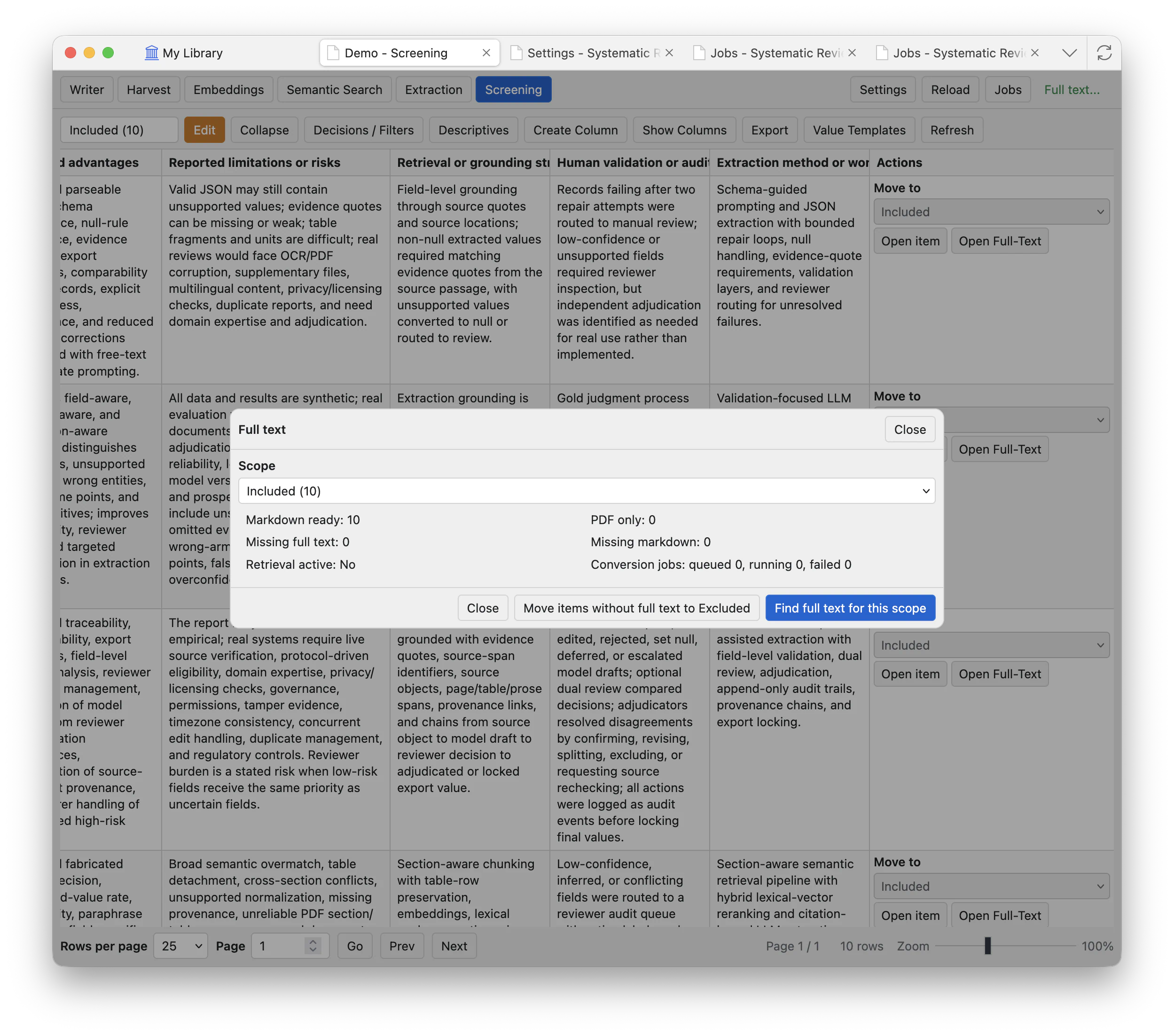
Attempt retrieval
Queues full-text retrieval for records in the chosen scope. Results appear later through Jobs and project attachments.
Move no-full-text records
Moves records without available full text into the configured target scope. Use a clear reason so the decision is auditable.
Export CSV
Exports screening rows and selected columns. Use Show Columns first if you want a cleaner CSV.
Open converted full text
When a paper has a converted Markdown attachment, Open Full-Text opens the Zotero attachment view with the source PDF on one side and the converted Markdown on the other. Converted files stay attached to the Zotero item, so they can support Find, extraction, semantic workflows, and manual checking.
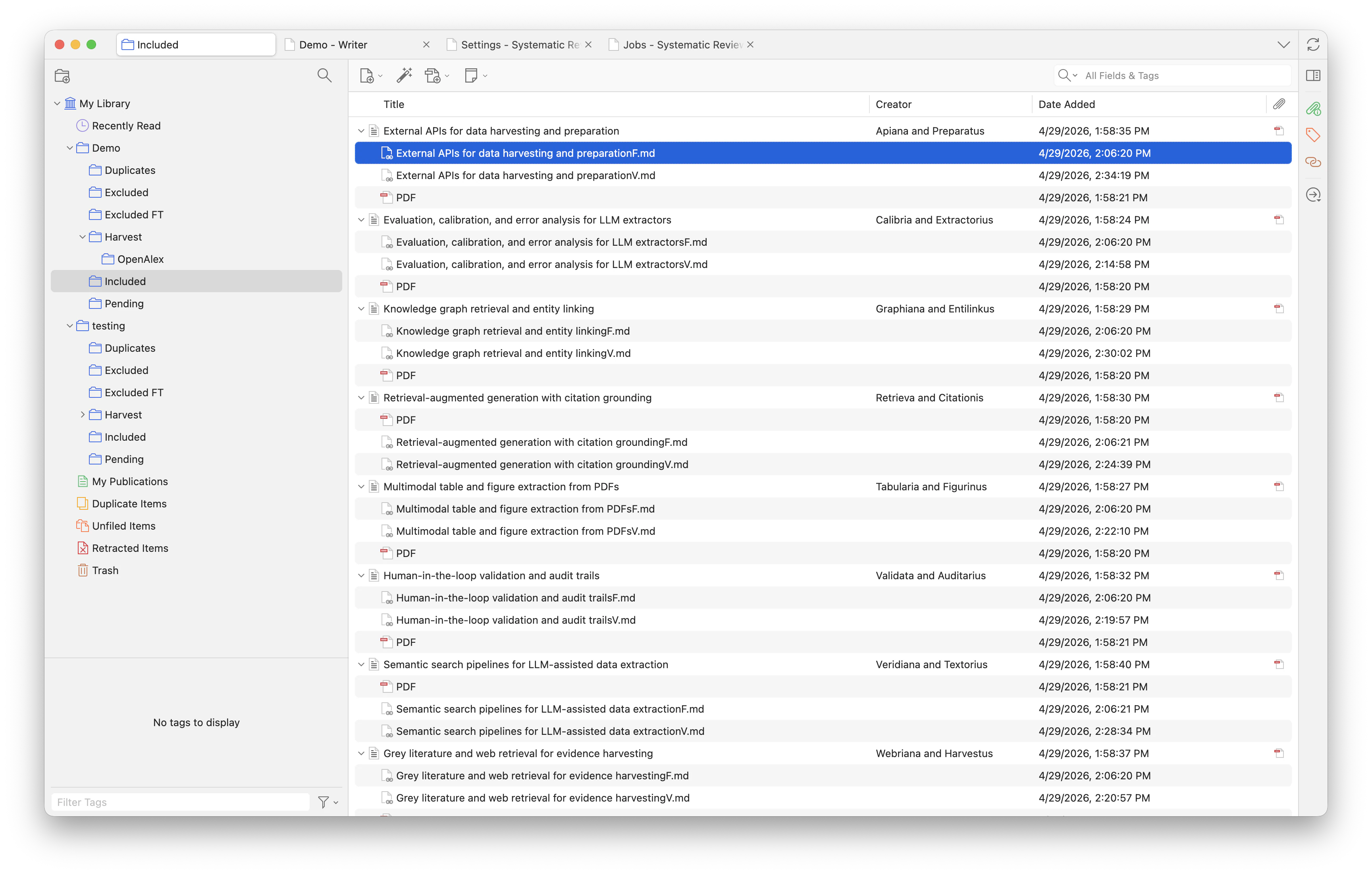
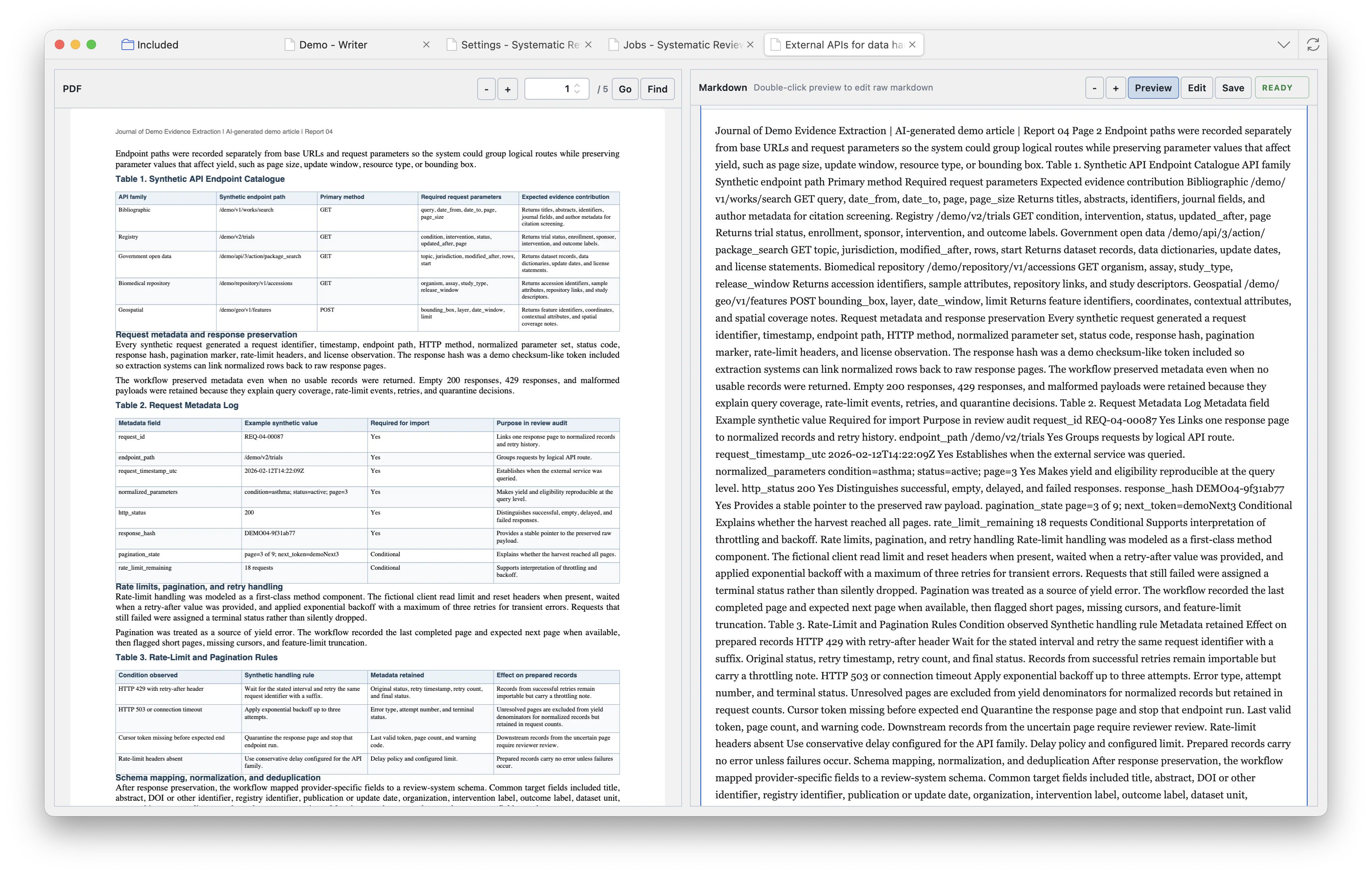
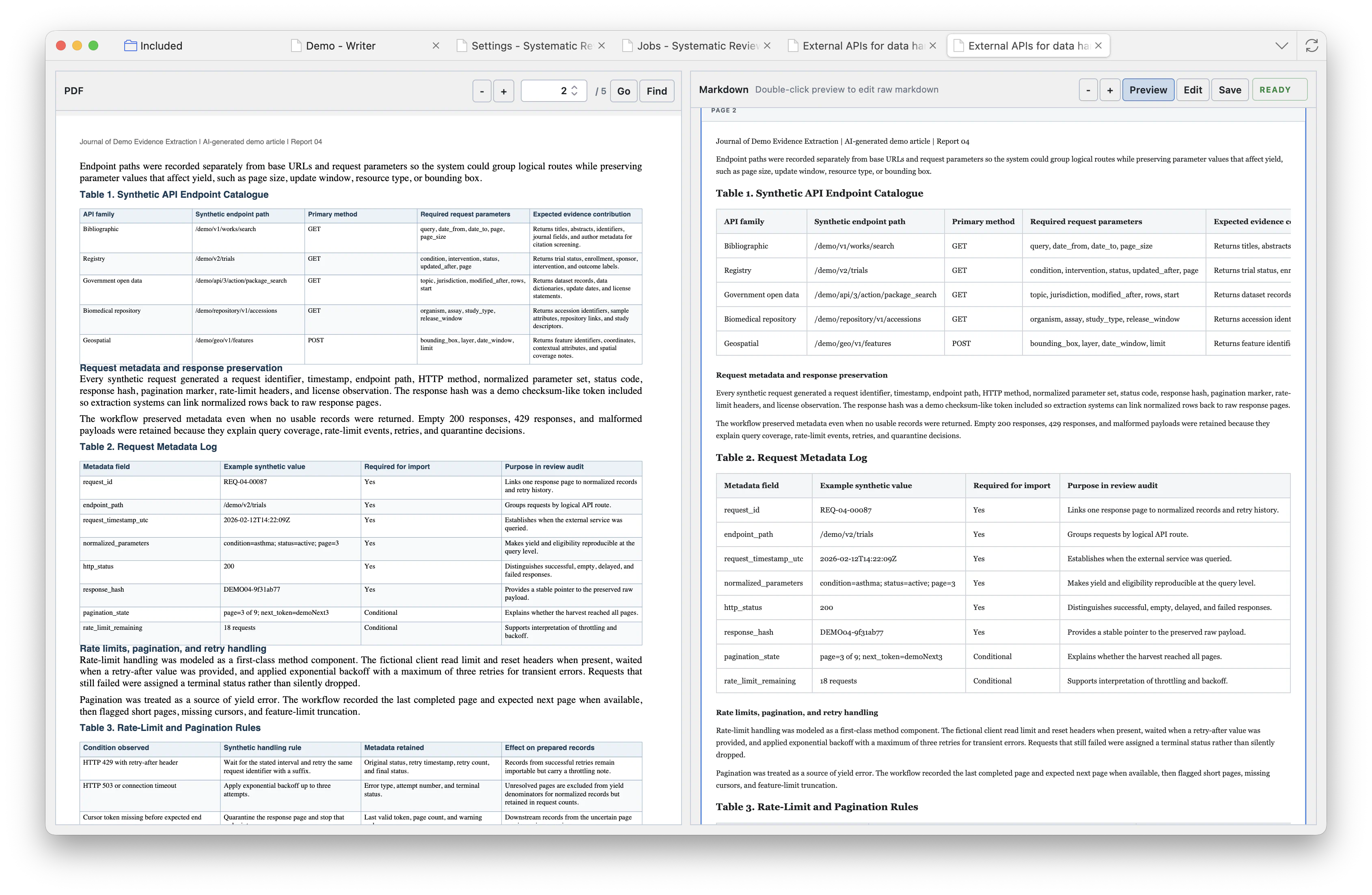
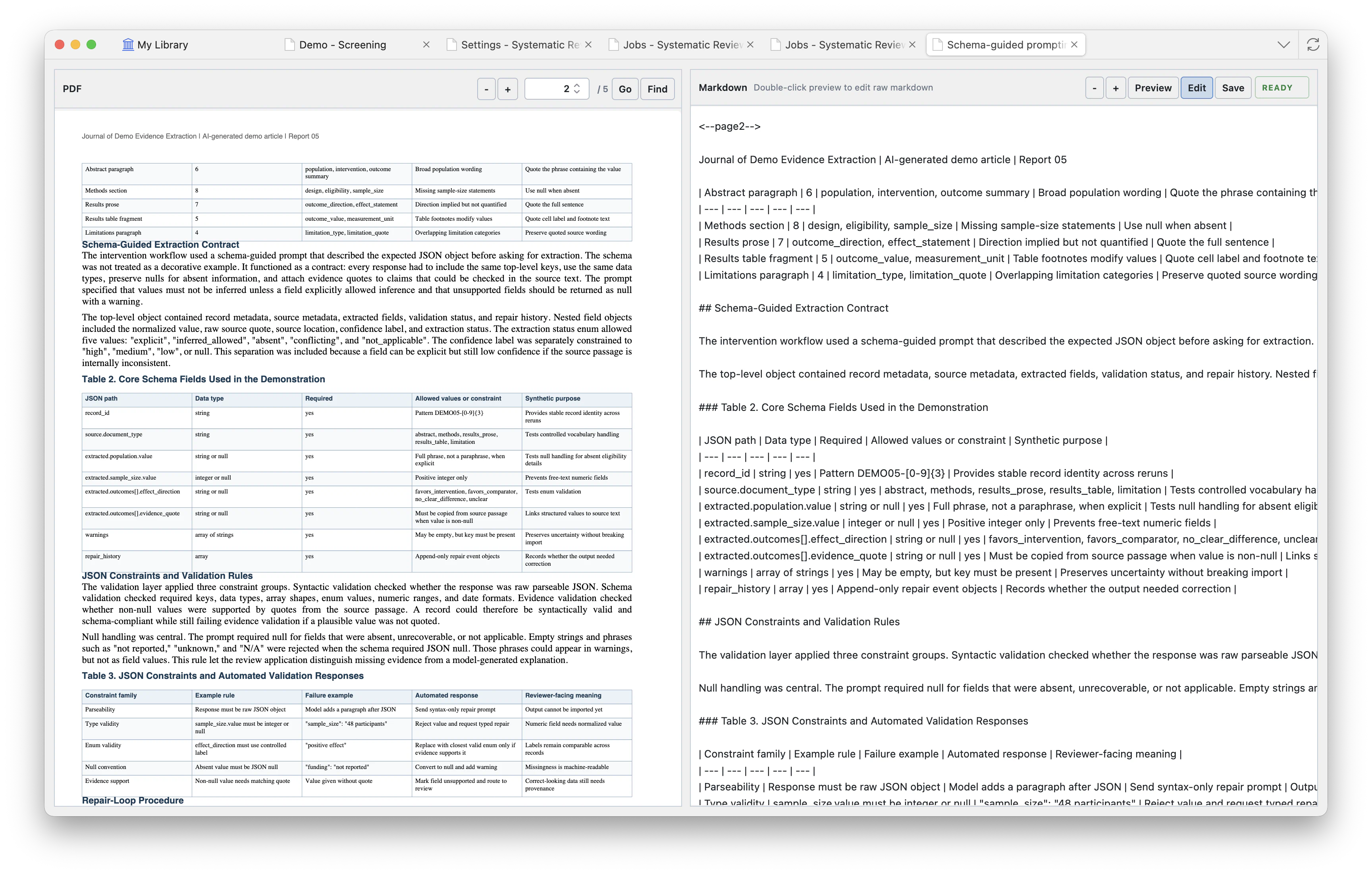
Find
Searches inside the opened document so you can jump to a phrase, table, or section while checking full text.
Preview/Edit
Preview shows the converted Markdown as rendered text. Edit lets you fix the Markdown attachment itself when conversion needs cleanup.
Save
Saves manual Markdown corrections. Use this for clear conversion errors, not for changing the meaning of the source paper.
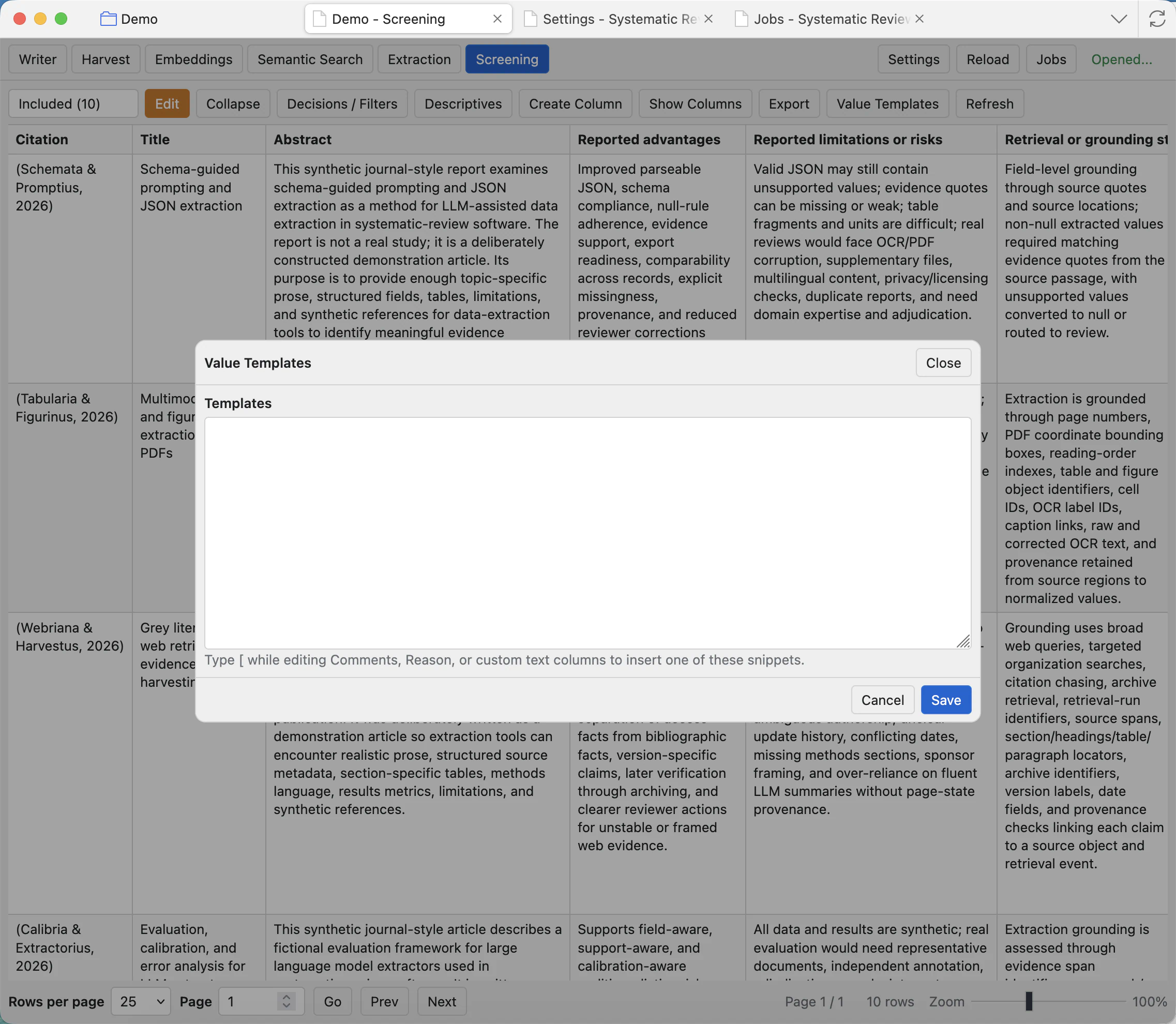
Value templates
Value Templates are reusable snippets for text-like screening fields. While editing Comments, Reason, or custom text columns, type the template trigger to insert a standard phrase consistently.
For large projects, narrow the scope, hide unnecessary columns, and use pagination before asking the agent to summarize or change many records.